Skip to content
No results
  • Home
  • Service
  • Price
  • Knowledge
  • Contact as
Application Trial14 Days testing
group-trax.com
  • Home
  • Service
  • Price
  • Knowledge
  • Contact as
group-trax.com

How can we help you?

hardware technik

  • Our POS Device

Video Training

  • v01-cashier Basics
    • Cashier Basics in 90 Seconds
  • v02-Scanning & Fast Checkout
    • Scanning & Fast Checkout 

Trax documentation root v1

  • 01-Getting Started & Setup
    • How to Secure Your First-Time Login Easily
    • Master Store Profile, Tax Setup, and Receipt Customization
    • User Interface Navigation, Status Indicators & Menus
  • 02-Hardware & Devices
    • Thermal Receipt Printer Setup Guide
    • PrintAgent Desktop Application & Background Service
    • Barcode Scanner & Electronic Cash Drawer Setup
    • Customer Facing Display (Dual-Screen Setup)
  • 03-Products & Inventory
    • Product Categories Management Guide
    • Adding & Managing Products (Catalog Setup)
    • VAT & Tax Rates Configuration Guide
    • Stock Tracking & Low Stock Alerts
    • Barcode Label & Shelf Tag Printing Guide
  • 04-Suppliers & Supply Chain
    • Suppliers Directory & Smart Product Auto-Scanning
    • Adding & Managing Suppliers Manually (Product Association)
    • Exporting Suppliers to Excel & Batch Management Guide
  • 05-Customer Management & CRM
    • Store Customers Directory & Overview Statistics Guide
    • Adding & Updating Customer Profiles Guide
    • Customer Barcode Card & Invoice History Guide
  • 06-Daily POS Operations
    • Offline Mode Operations & IndexedDB Synchronization Guide
    • Cart Building, Barcode Scanning & Weighed Items Guide
    • Line Items Editing, Global Discounts & Customer Linking Guide
    • Checkout, Payment Modal & Change Calculation Guide
    • POS Top Toolbar: Device Status, Calculator & PIN Lock Guide
    • Offline Mode Operations & IndexedDB Synchronization Guide
  • 07-Invoices & Refunds
    • Invoices Archive & Multi-Criteria Search Guide
    • Thermal Reprint & Official PDF Export Guide
    • Returns, Refunds & Inventory Reversal Guide
  • 08-Cash Drawer & Shifts
    • TreeTable Stock Ledger & Variant Tracking Guide
View Categories
  • Home
  • Knowledge Base v1
  • Trax documentation root v1
  • 05-Customer Management & CRM
  • Customer Barcode Card & Invoice History Guide

Customer Barcode Card & Invoice History Guide

info@group-trax.com
Updated on September 13, 2026

2 min read

Every registered customer in TRAX Store Management System receives an automatically generated barcode ID card and a comprehensive, itemized purchase history.


1. Opening the Customer Details Modal #

You can inspect full customer details in two ways:

  • By clicking directly on the blue Customer ID chip in the table.
  • By clicking the View Details (Eye) icon (pi pi-eye) in the Actions column.

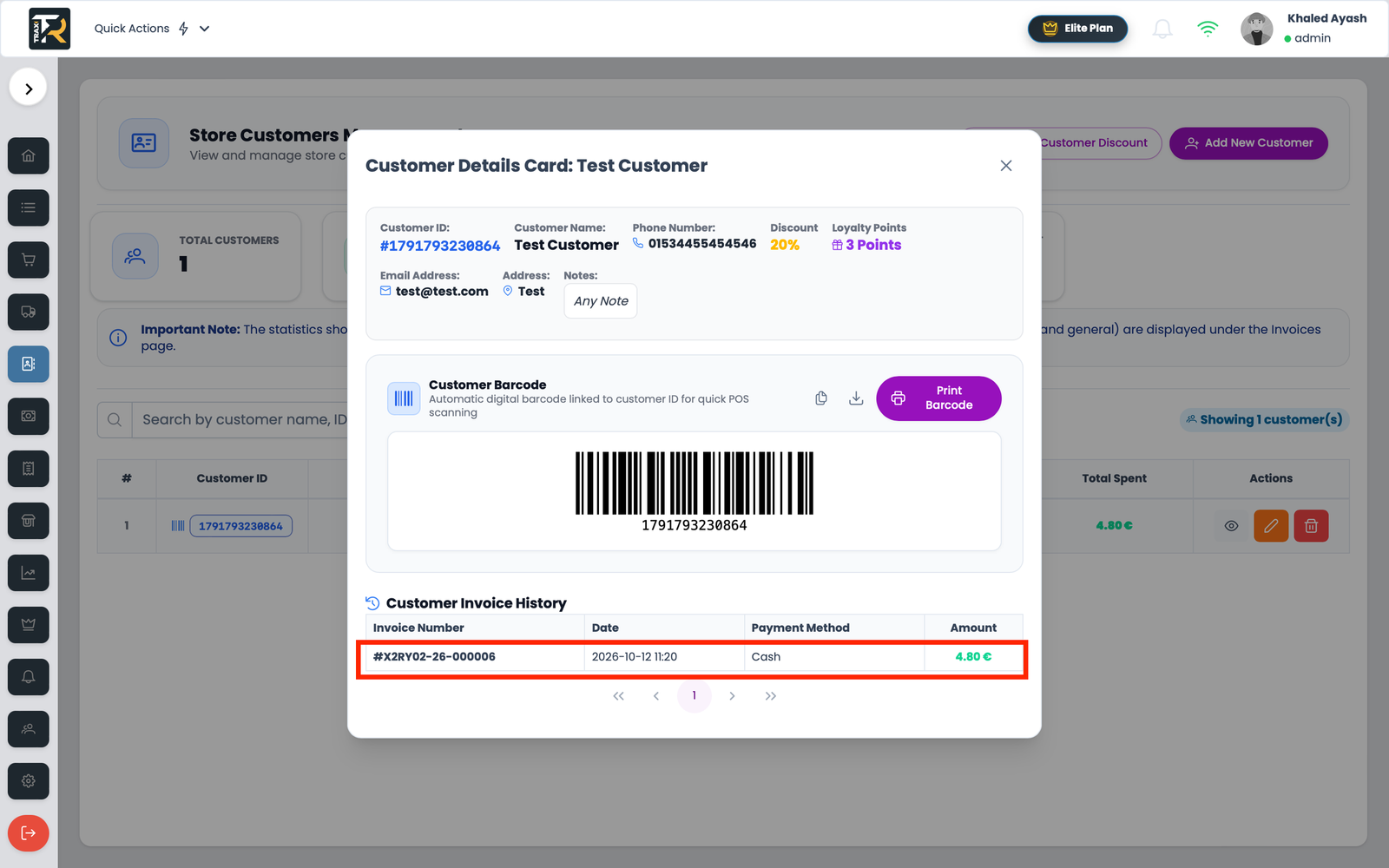
Visual Reference: Customer Details, Barcode & History Modal

(Upload and insert the generated customer_details_ui image here)


2. Comprehensive Profile Information #

The top card displays all verified customer credentials:

  • Unique Customer ID: Unique numeric identifier (e.g., #1712345678).
  • Name, Phone & Email: Verified contact channels.
  • Physical Address: Street, city, and postal code.
  • Internal Customer Notes: Highlighted in an italicized quote box for cashier reference.

3. Customer Barcode Card Engine (CODE128) #

TRAX POS automatically transforms each customer’s unique ID into a scannable CODE128 Barcode:

  • Live SVG Barcode: Displayed in the center of the barcode panel for instant scanning from phone screens or physical cards.
  • Copy Customer ID (📋): Copies the numeric customer ID to your clipboard with a single click.
  • Download Barcode (📥): Downloads the raw SVG barcode file to your computer for card printing.
  • Print Barcode Card (🖨️): Opens a dedicated printable customer card layout featuring:
    • Store branding and header.
    • Customer full name and phone number.
    • High-contrast scannable barcode ready for lamination or key fob stickers.

Cashier Checkout Scanning: Cashiers can scan this customer barcode using their handheld POS barcode scanner during checkout to instantly assign the sale to this customer!


4. Customer Invoice & Order History #

The bottom section displays all historical purchases completed by this customer:

  • Unified Data Merging: Automatically merges completed invoices from both cloud server records and local offline checkout sessions.
  • Invoice Table Columns:
    • Invoice Number: Reference bill ID (e.g., #10452).
    • Date & Time: Exact transaction timestamp (YYYY-MM-DD HH:mm).
    • Payment Method: Method used for payment (Cash, Credit Card, etc.).
    • Total Amount: Grand total of the invoice in Euros (€).
5-Customer Management & CRM
What are your Feelings
Share This Article :
  • Facebook
  • X
  • LinkedIn
  • Pinterest
Still stuck? How can we help?

How can we help?

Updated on September 13, 2026
Adding & Updating Customer Profiles GuideStore Customers Directory & Overview Statistics Guide

Leave a ReplyCancel Reply

Your email address will not be published. Required fields are marked *

Table of Contents
  • 1. Opening the Customer Details Modal
  • 2. Comprehensive Profile Information
  • 3. Customer Barcode Card Engine (CODE128)
  • 4. Customer Invoice & Order History
  • Home
  • Service
  • Price
  • Knowledge
  • Contact as

Copyright © 2026 -  by Ayash-Group


Trax Store Management Systeme