Skip to content
No results
  • Home
  • Service
  • Price
  • Knowledge
  • Contact as
Application Trial14 Days testing
group-trax.com
  • Home
  • Service
  • Price
  • Knowledge
  • Contact as
group-trax.com

How can we help you?

hardware technik

  • Our POS Device

Video Training

  • v01-cashier Basics
    • Cashier Basics in 90 Seconds
  • v02-Scanning & Fast Checkout
    • Scanning & Fast Checkout 

Trax documentation root v1

  • 01-Getting Started & Setup
    • How to Secure Your First-Time Login Easily
    • Master Store Profile, Tax Setup, and Receipt Customization
    • User Interface Navigation, Status Indicators & Menus
  • 02-Hardware & Devices
    • Thermal Receipt Printer Setup Guide
    • PrintAgent Desktop Application & Background Service
    • Barcode Scanner & Electronic Cash Drawer Setup
    • Customer Facing Display (Dual-Screen Setup)
  • 03-Products & Inventory
    • Product Categories Management Guide
    • Adding & Managing Products (Catalog Setup)
    • VAT & Tax Rates Configuration Guide
    • Stock Tracking & Low Stock Alerts
    • Barcode Label & Shelf Tag Printing Guide
  • 04-Suppliers & Supply Chain
    • Suppliers Directory & Smart Product Auto-Scanning
    • Adding & Managing Suppliers Manually (Product Association)
    • Exporting Suppliers to Excel & Batch Management Guide
  • 05-Customer Management & CRM
    • Store Customers Directory & Overview Statistics Guide
    • Adding & Updating Customer Profiles Guide
    • Customer Barcode Card & Invoice History Guide
  • 06-Daily POS Operations
    • Offline Mode Operations & IndexedDB Synchronization Guide
    • Cart Building, Barcode Scanning & Weighed Items Guide
    • Line Items Editing, Global Discounts & Customer Linking Guide
    • Checkout, Payment Modal & Change Calculation Guide
    • POS Top Toolbar: Device Status, Calculator & PIN Lock Guide
    • Offline Mode Operations & IndexedDB Synchronization Guide
  • 07-Invoices & Refunds
    • Invoices Archive & Multi-Criteria Search Guide
    • Thermal Reprint & Official PDF Export Guide
    • Returns, Refunds & Inventory Reversal Guide
  • 08-Cash Drawer & Shifts
    • TreeTable Stock Ledger & Variant Tracking Guide
View Categories
  • Home
  • Knowledge Base v1
  • Trax documentation root v1
  • 04-Suppliers & Supply Chain
  • Adding & Managing Suppliers Manually (Product Association)

Adding & Managing Suppliers Manually (Product Association)

info@group-trax.com
Updated on September 13, 2026

1 min read

In addition to automatic detection, TRAX Store Management System allows you to manually register wholesale vendors and link them directly to products from your active catalog.


1. Step-by-Step: Adding a Supplier Manually #

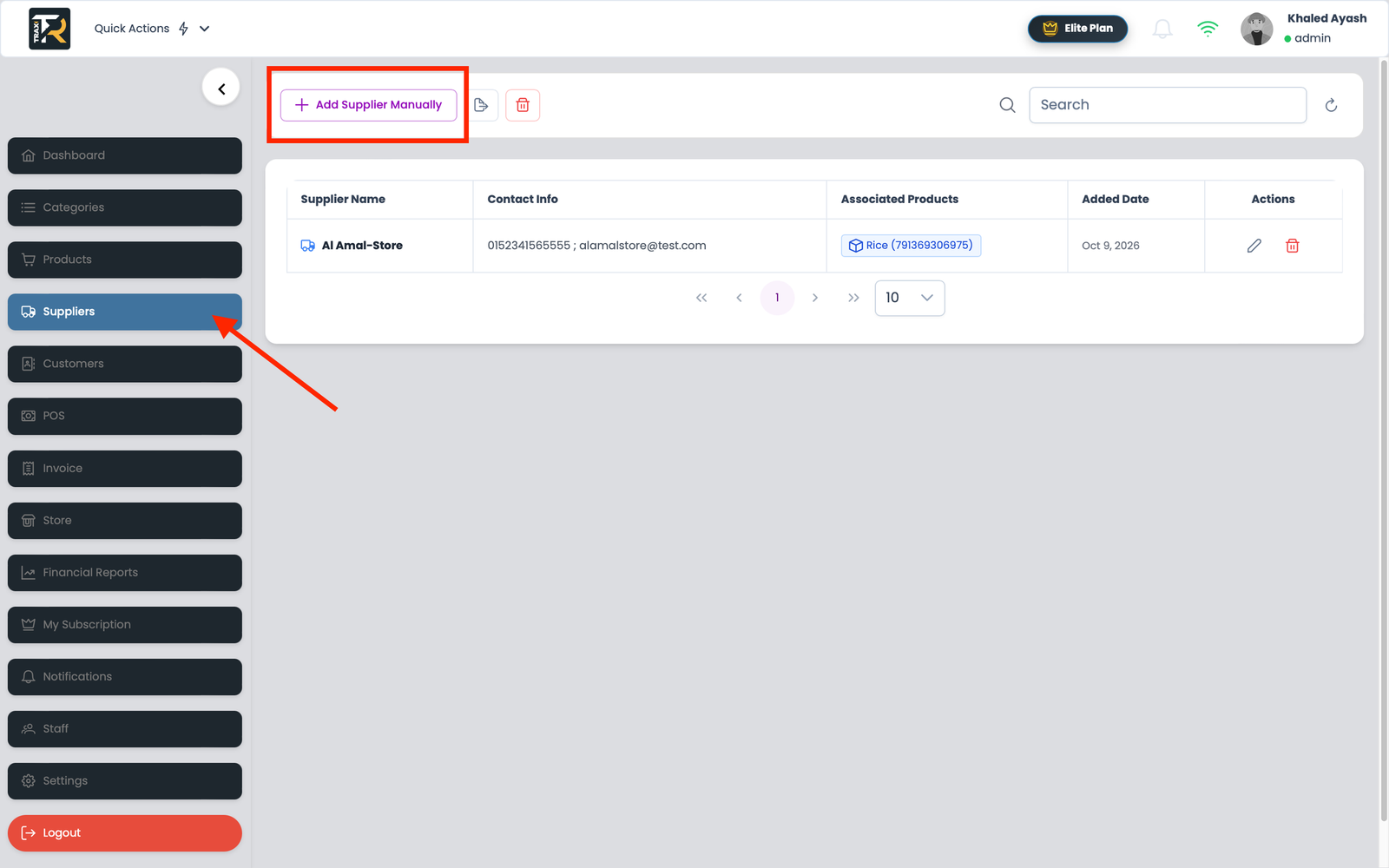
  1. Go to the Suppliers module from the main sidebar.
  2. Click the + Add Supplier Manually button on the left side of the top toolbar.
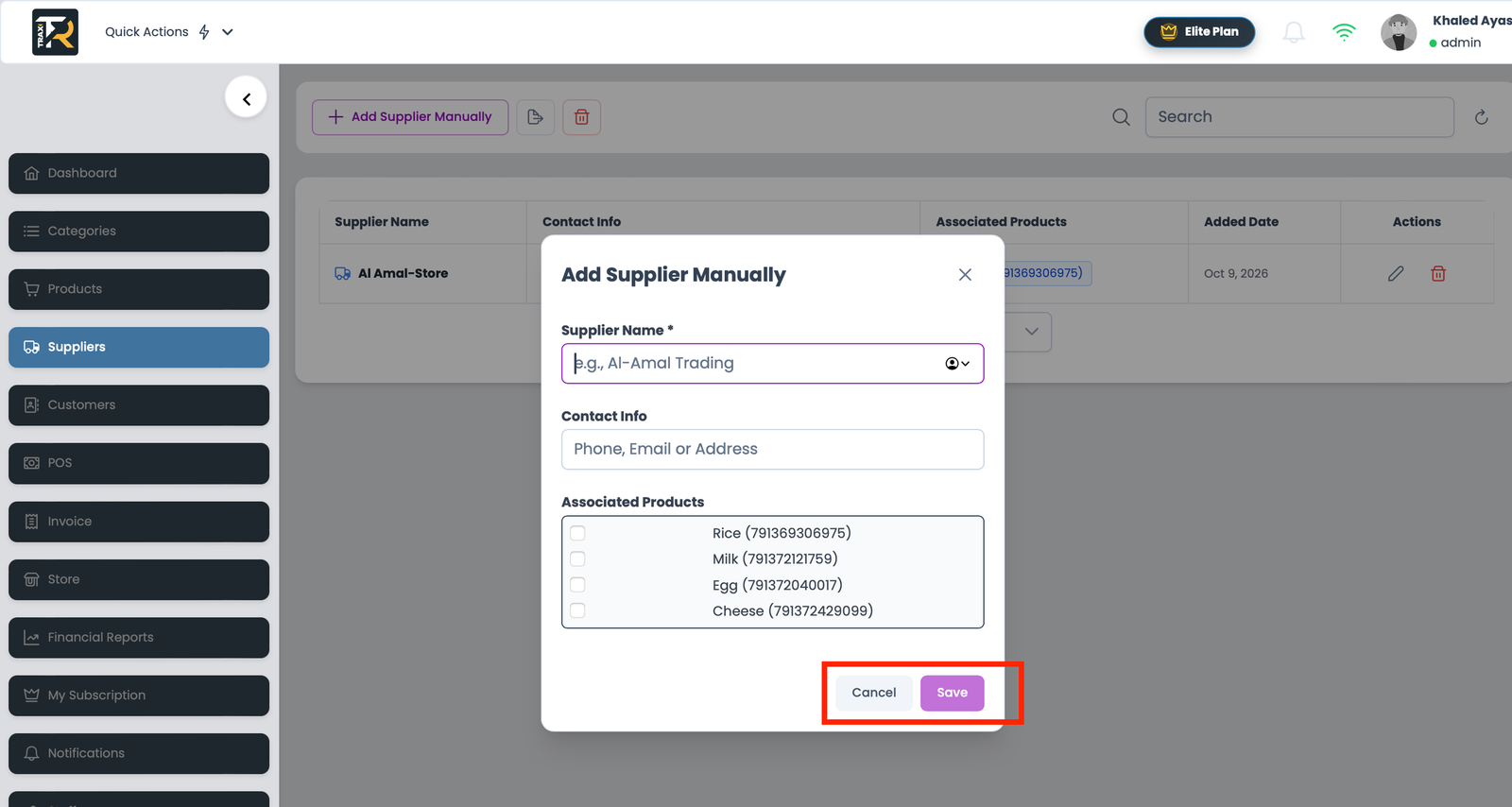
  3. The entry modal opens with the following fields:
    • Supplier Name (*): Mandatory trade name (e.g., Al-Amal Trading, Global Beverage Dist.).
    • Supplier Contact: Optional phone number, sales rep email, or physical depot address.
    • Associated Products Checklist: A scrollable multi-select container displaying all active catalog items with their scannable barcodes: Product Name (Barcode).
  4. Check the boxes next to the items supplied by this vendor.
  5. Click the blue Save button.

Visual Reference: Add / Edit Supplier Dialog

(Upload and insert the generated add_supplier_dialog image here)


2. Editing an Existing Supplier Profile #

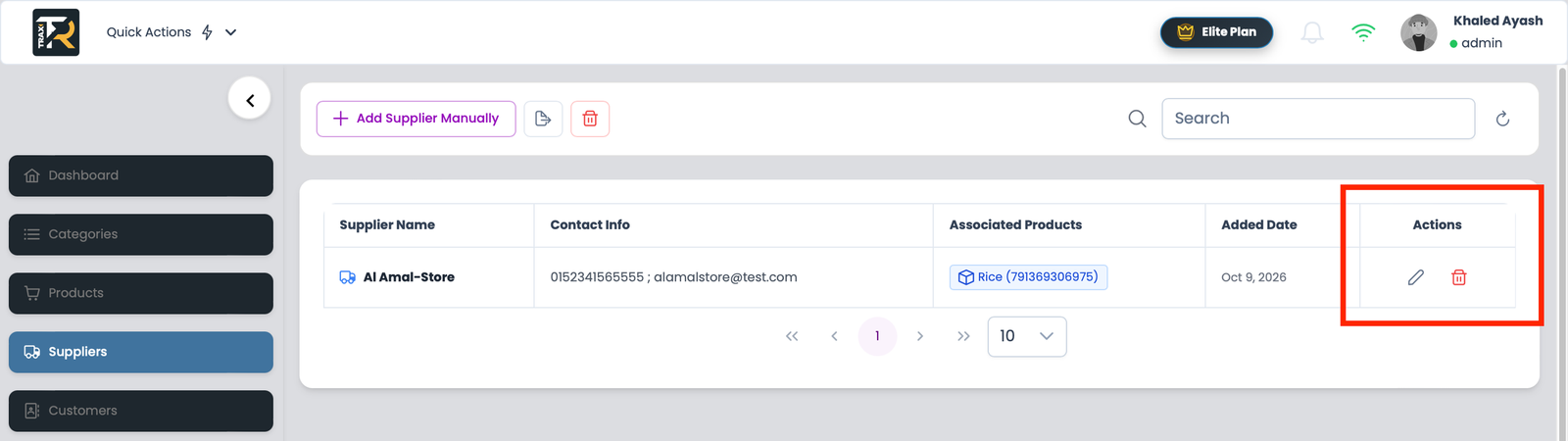
  1. In the suppliers table, locate the vendor you wish to modify.
  2. Click the Edit (Pencil) icon in the Actions column.
  3. The dialog opens in edit mode pre-filled with the vendor’s current information and linked products.
  4. Update the contact details or check/uncheck products to reflect changes in your supply agreements.
  5. Click Save to update the record immediately.

3. Deleting a Single Supplier Record #

  1. Click the red Trash icon in the Actions column next to the target supplier.
  2. A confirmation alert will prompt: “Are you sure you want to delete this supplier?”.
  3. Click Confirm.
  4. The supplier profile is removed from your list, while the actual retail products remain completely safe and untouched in your catalog.
4-Suppliers Management
What are your Feelings
Share This Article :
  • Facebook
  • X
  • LinkedIn
  • Pinterest
Still stuck? How can we help?

How can we help?

Updated on September 13, 2026
Suppliers Directory & Smart Product Auto-ScanningExporting Suppliers to Excel & Batch Management Guide

Leave a ReplyCancel Reply

Your email address will not be published. Required fields are marked *

Table of Contents
  • 1. Step-by-Step: Adding a Supplier Manually
  • 2. Editing an Existing Supplier Profile
  • 3. Deleting a Single Supplier Record
  • Home
  • Service
  • Price
  • Knowledge
  • Contact as

Copyright © 2026 -  by Ayash-Group


Trax Store Management Systeme