Skip to content
Skip to content
No results
  • Home
  • Service
  • Price
  • Knowledge
    • Knowledge Base
    • Training videos
  • Contact as
Application Trial14 Days testing
group-trax.com
  • Home
  • Service
  • Price
  • Knowledge
    • Knowledge Base
    • Training videos
  • Contact as
group-trax.com

01-Getting Started & Setup

3
  • 01.1-Login & Security
    • How to Secure Your First-Time Login Easily
  • 01.2-Store Profile Setup
    • Master Store Profile, Tax Setup, and Receipt Customization
  • 01.3-UI Navigation Tour
    • Ultimate Guide to UI Navigation, Status Indicators, and Menus

02-Hardware & Devices

4
  • 02.1-Receipt Printers Setup
    • 02.1- Receipt Printers Setup (Thermal 80mm & 58mm)
  • 02.2-PrintAgent Desktop App
    • 02.2- PrintAgent Desktop Application & Background Service
  • 02.3-Scanner & Cash Drawer
    • 02.3- Barcode Scanner & Electronic Cash Drawer Integration
  • 02.4-Customer Display Setup
    • 02.4- Dual-Screen Customer Facing Display Setup

03-Products & Inventory

3
  • 03.1-Categories Management
    • 03.1- Product Categories Management
  • 03.2-Add & Manage Products
    • 03.2- Adding & Managing Products (Catalog Setup)
  • 03.3-VAT & Tax Rates Setup
    • 03.3- VAT & Tax Rates Configuration
View Categories
  • Home
  • Knowledge Base v1
  • 03-Products & Inventory
  • 03.2-Add & Manage Products
  • 03.2- Adding & Managing Products (Catalog Setup)

03.2- Adding & Managing Products (Catalog Setup)

1 min read

03.2- Adding & Managing Products Guide #

Adding items to your catalog accurately ensures effortless barcode scanning, correct pricing, automated tax collection, and seamless inventory deductions in TRAX POS.


1. Step-by-Step: Adding a New Product #

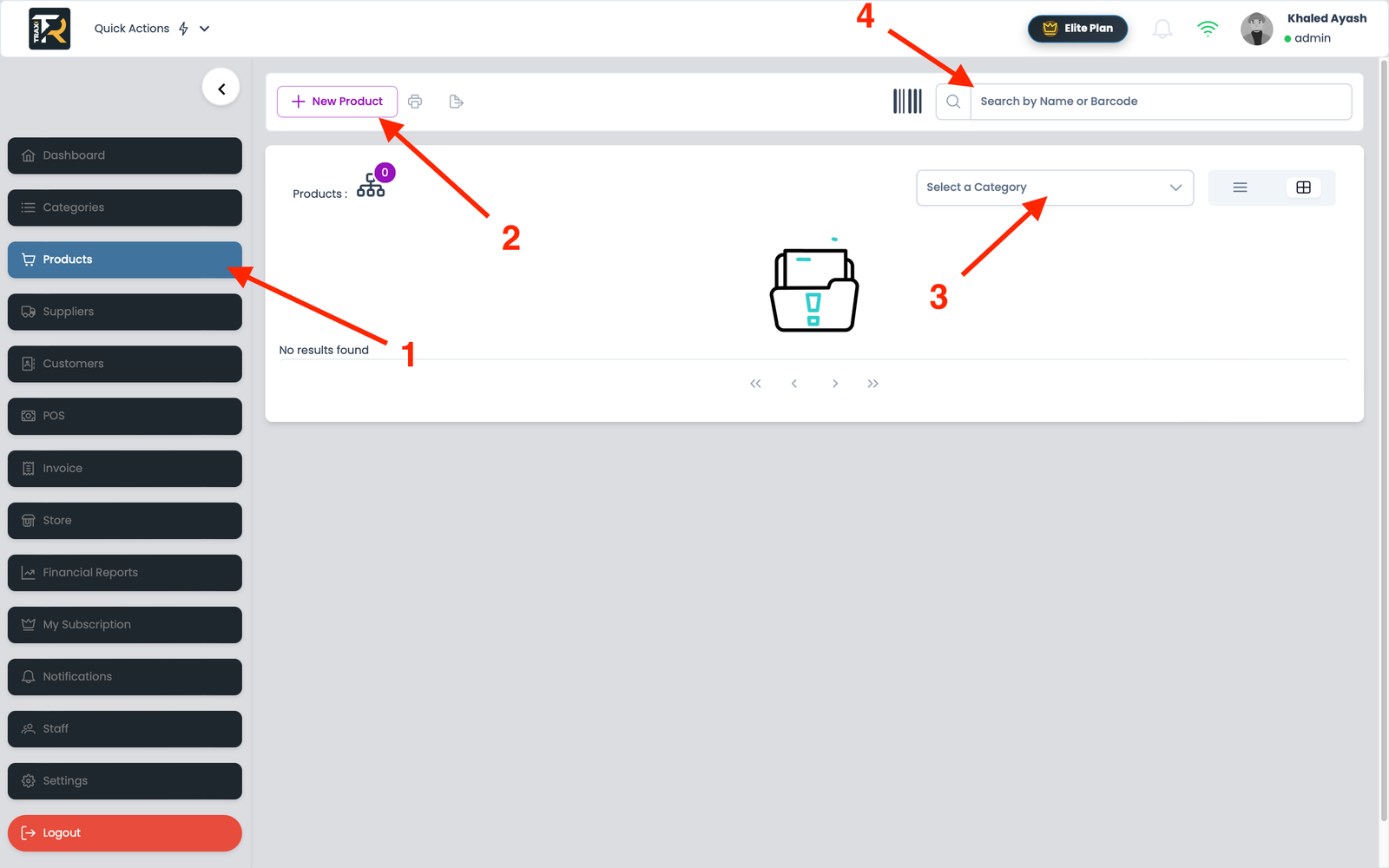
  1. Navigate to Products from the sidebar and click + Add New Product (or press Alt + 3).
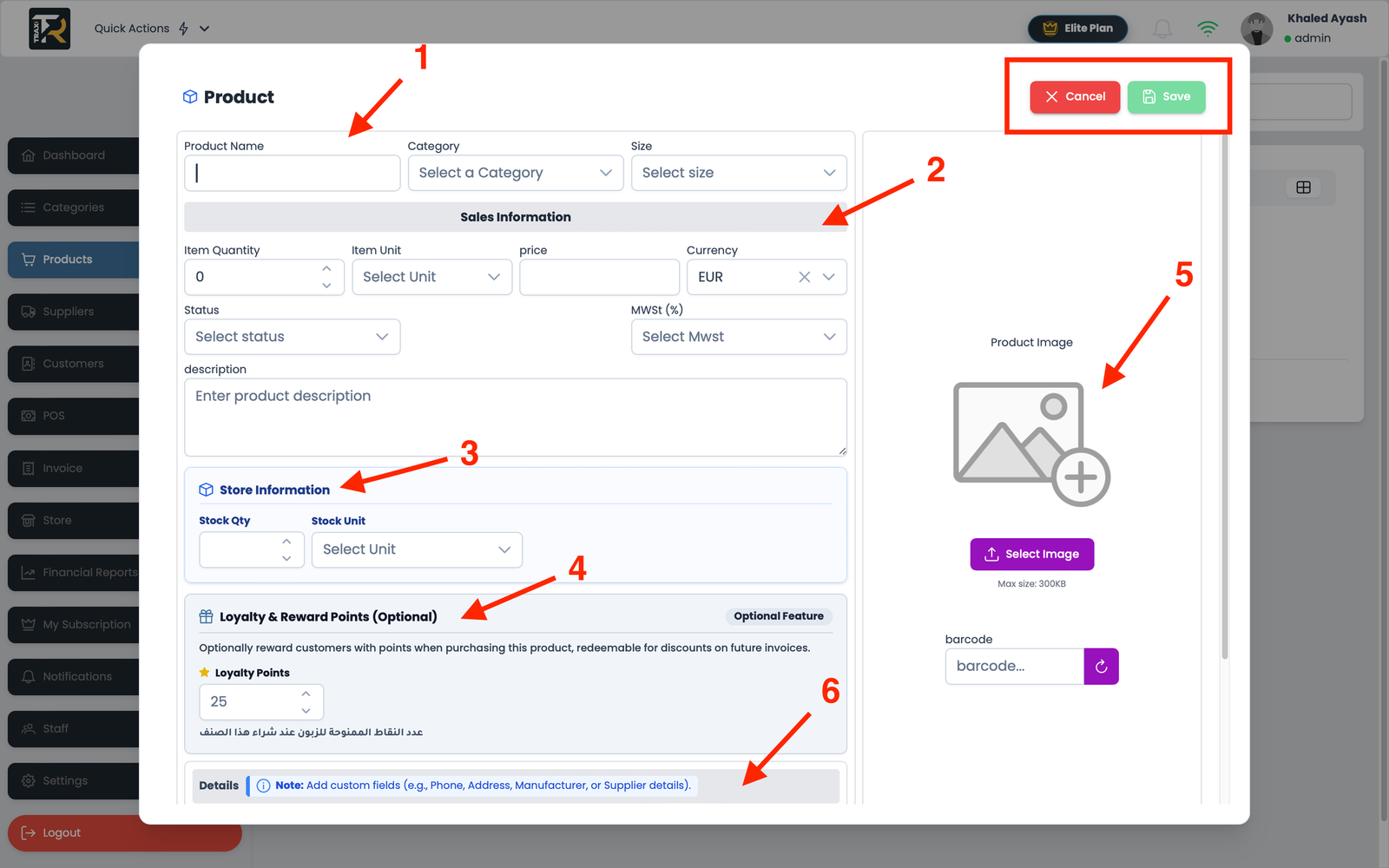
  2. Fill in the primary product information:
    • Product Name: The descriptive customer-facing title (e.g., Organic Green Tea 250g).
    • Barcode (EAN-13 / UPC / SKU): Scan the physical product barcode with your handheld scanner, or click Generate to create a unique internal code.
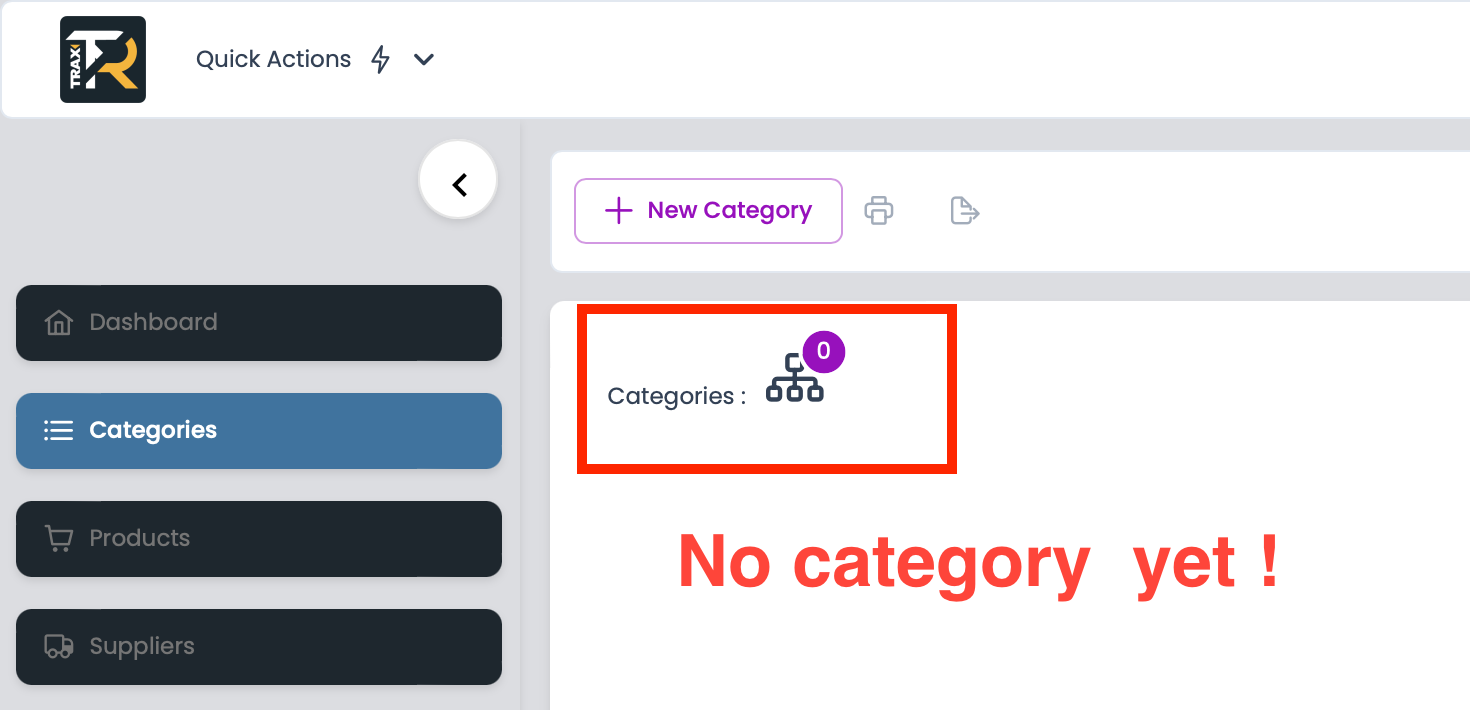
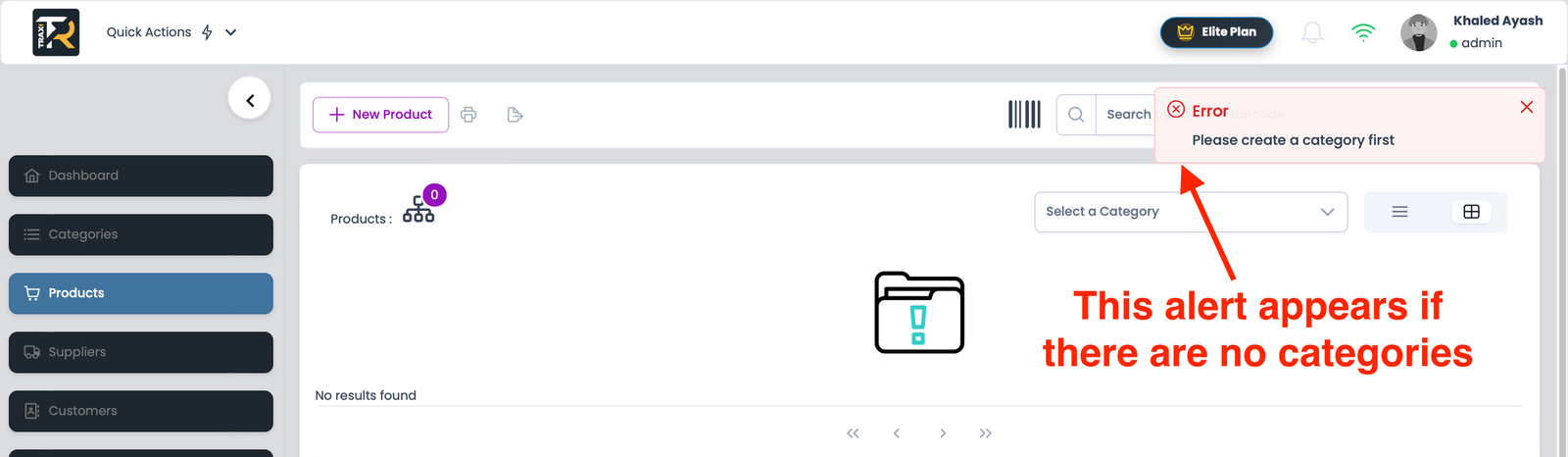
    • Category: Assign the product to its relevant departmental category from the dropdown.

Visual Reference: Add Product Form Modal #

(Upload and insert the generated add_product_ui image here)


2. Pricing & Profit Margin Calculation #

TRAX POS features an automatic real-time profit margin calculator:

  • Cost Price (Purchase Price): Enter your wholesale acquisition cost (e.g., $2.20).
  • Selling Price (Retail Price): Enter the final customer price (e.g., $4.99).
  • Live Profit Badge: The system automatically calculates and highlights your net margin (e.g., +126% Margin).
  • Applicable Tax Rate: Select the appropriate tax category (e.g., 19% Standard VAT or 7% Reduced).

3. Inventory & Media Settings #

  • Initial Stock Quantity: Enter the starting physical count on hand (e.g., 50 units).
  • Product Image Upload: Drag and drop a product photo. High-resolution square thumbnails (400x400px) render crisply on touch-screen POS tiles.
  • Active Status: Toggle ON to make the item immediately sellable at checkout.
Updated on September 9, 2026
3-Catalog & Inventory

What are your Feelings

  • Happy
  • Normal
  • Sad

Share This Article :

  • Facebook
  • X
  • LinkedIn
  • Pinterest
03.2- Adding & Managing Products (Catalog Setup)03.2- Adding & Managing Products (Catalog Setup)

Leave a ReplyCancel Reply

Your email address will not be published. Required fields are marked *

Table of Contents
  • 03.2- Adding & Managing Products Guide
    • 1. Step-by-Step: Adding a New Product
    • Visual Reference: Add Product Form Modal
    • 2. Pricing & Profit Margin Calculation
    • 3. Inventory & Media Settings
  • Home
  • Service
  • Price
  • Knowledge
  • Contact as
Application Trax

Trax Store Management System.
All rights reserved.

Trax Store Management Systeme