
Skip to content
No results
  • Home
  • Service
  • Price
  • Knowledge
  • Contact as
Application Trial14 Days testing
group-trax.com
  • Home
  • Service
  • Price
  • Knowledge
  • Contact as
group-trax.com

How can we help you?

hardware technik

  • Our POS Device

Video Training

  • v01-cashier Basics
    • Cashier Basics in 90 Seconds
  • v02-Scanning & Fast Checkout
    • Scanning & Fast Checkout 

Trax documentation root v1

  • 01-Getting Started & Setup
    • How to Secure Your First-Time Login Easily
    • Master Store Profile, Tax Setup, and Receipt Customization
    • User Interface Navigation, Status Indicators & Menus
  • 02-Hardware & Devices
    • Thermal Receipt Printer Setup Guide
    • PrintAgent Desktop Application & Background Service
    • Barcode Scanner & Electronic Cash Drawer Setup
    • Customer Facing Display (Dual-Screen Setup)
  • 03-Products & Inventory
    • Product Categories Management Guide
    • Adding & Managing Products (Catalog Setup)
    • VAT & Tax Rates Configuration Guide
    • Stock Tracking & Low Stock Alerts
    • Barcode Label & Shelf Tag Printing Guide
  • 04-Suppliers & Supply Chain
    • Suppliers Directory & Smart Product Auto-Scanning
    • Adding & Managing Suppliers Manually (Product Association)
    • Exporting Suppliers to Excel & Batch Management Guide
  • 05-Customer Management & CRM
    • Store Customers Directory & Overview Statistics Guide
    • Adding & Updating Customer Profiles Guide
    • Customer Barcode Card & Invoice History Guide
  • 06-Daily POS Operations
    • Offline Mode Operations & IndexedDB Synchronization Guide
    • Cart Building, Barcode Scanning & Weighed Items Guide
    • Line Items Editing, Global Discounts & Customer Linking Guide
    • Checkout, Payment Modal & Change Calculation Guide
    • POS Top Toolbar: Device Status, Calculator & PIN Lock Guide
    • Offline Mode Operations & IndexedDB Synchronization Guide
  • 07-Invoices & Refunds
    • Invoices Archive & Multi-Criteria Search Guide
    • Thermal Reprint & Official PDF Export Guide
    • Returns, Refunds & Inventory Reversal Guide
  • 08-Cash Drawer & Shifts
    • TreeTable Stock Ledger & Variant Tracking Guide
View Categories
  • Home
  • Knowledge Base v1
  • Trax documentation root v1
  • 04-Suppliers & Supply Chain
  • Exporting Suppliers to Excel & Batch Management Guide

Exporting Suppliers to Excel & Batch Management Guide

info@group-trax.com
Updated on September 13, 2026

1 min read

TRAX POS provides built-in Excel export and batch management tools, allowing you to share vendor lists with accounting departments or perform complete catalog resets.


1. Exporting Supplier Records to Excel (.xlsx) #

  1. Navigate to Suppliers (/home/suppliers).
  2. Verify that your table contains active supplier records (the export button automatically disables if the list is empty).
  3. Click the Export to Excel button (with the green spreadsheet icon pi pi-file-export) in the top toolbar.
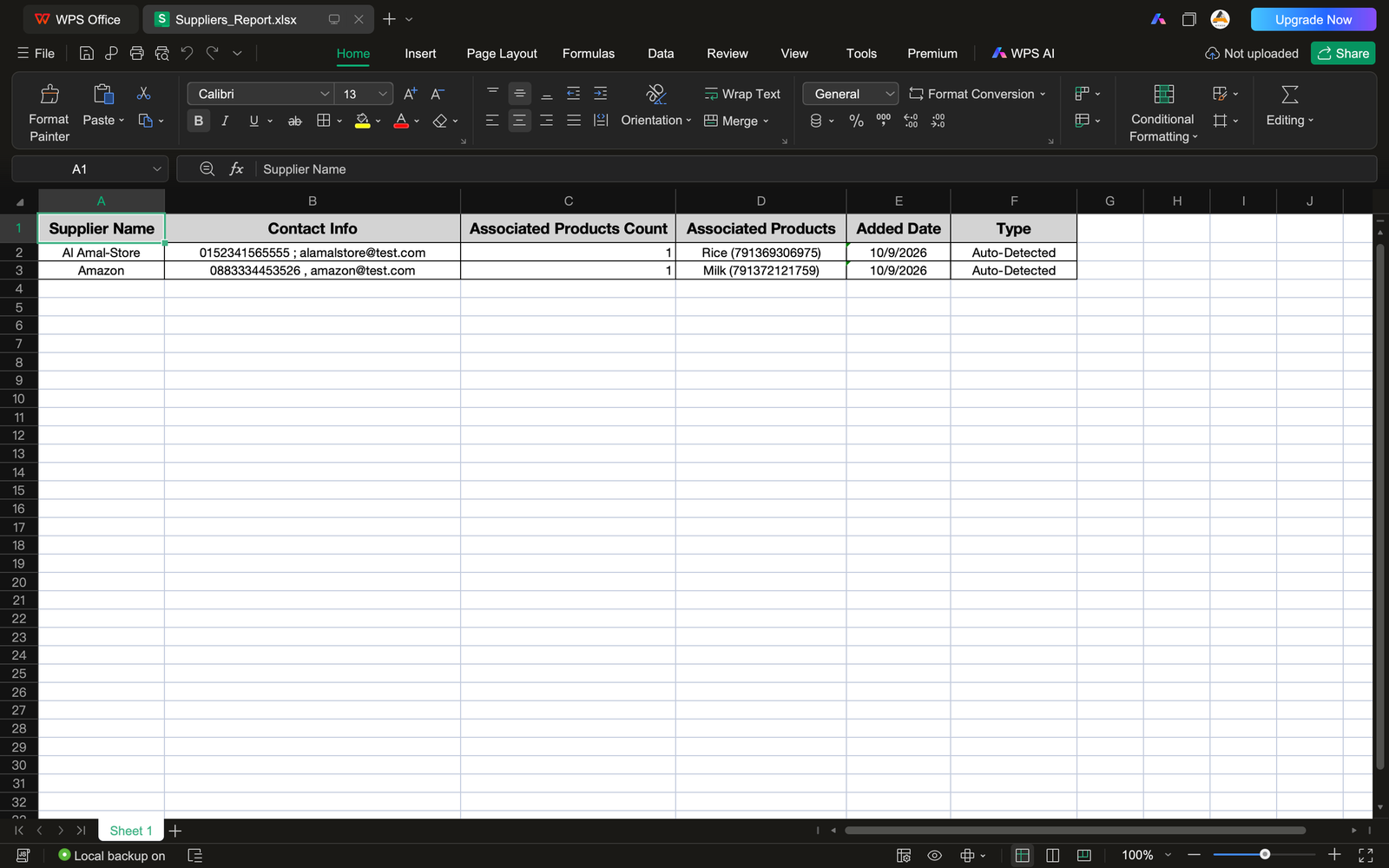
  4. The system instantly compiles and downloads a structured spreadsheet: suppliers_export.xlsx.
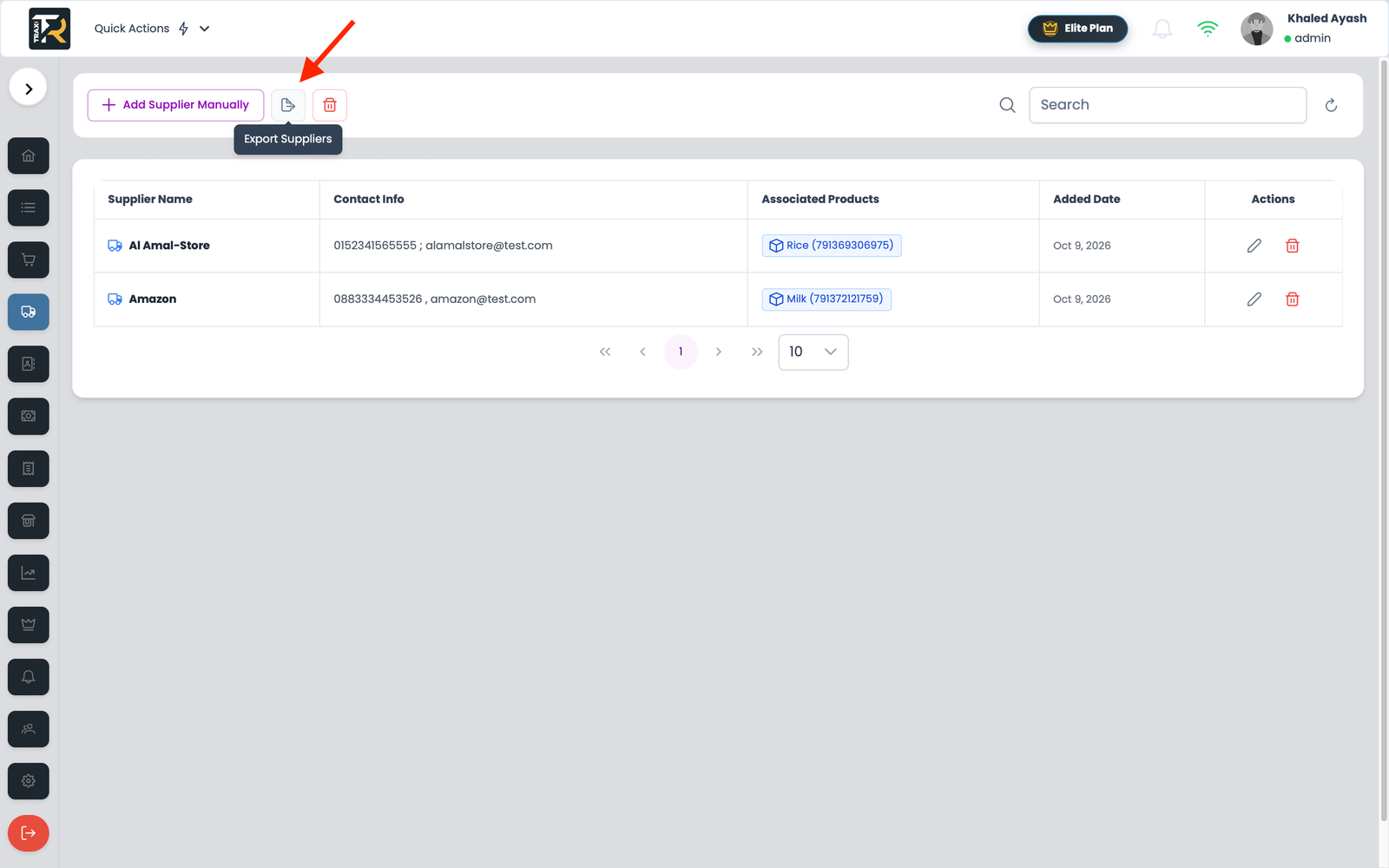
Visual Reference: Export to Excel Feature & Preview

(Upload and insert the generated suppliers_export_excel image here)


2. Exported Excel Data Structure #

The exported .xlsx file contains dedicated columns:

  • Supplier Name: Registered company or merchant title.
  • Contact Information: Telephone numbers, email addresses, or physical locations.
  • Date Added: Creation or auto-detection date.
  • Associated Products Count: Total number of inventory items supplied by this vendor.
  • Linked Product List: Full item names and scannable barcode numbers for procurement reference.
3. Inspecting Linked Products via Interactive Tooltip #

In the web interface table:

  • For vendors with more than 3 products, a gray badge displays: +X more.
  • Hover your mouse over this badge: An interactive tooltip pop-up appears displaying the full scrollable list of all linked products and their barcodes, eliminating the need to open the edit modal.

4. Batch Operation: Delete All Suppliers #

If you need to perform a complete supplier database reset or reload a clean catalog:

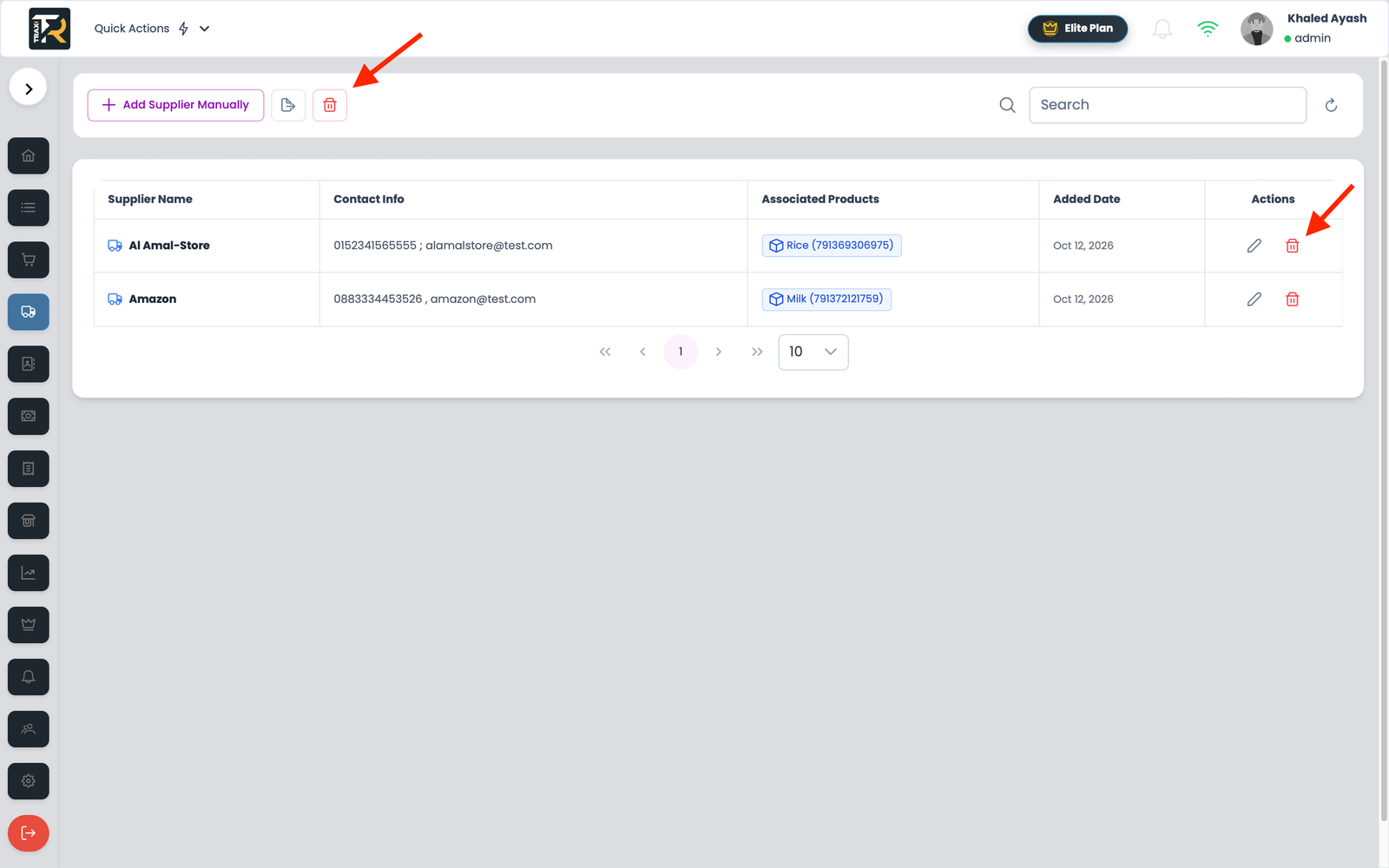
  1. Click the red Delete All button (pi pi-trash) in the toolbar.
  2. A critical confirmation modal appears: “Are you sure you want to delete all suppliers?”.
  3. Click Confirm Delete.
  4. The suppliers list is completely cleared, and you can re-populate it manually or via the Refresh auto-scanner.
4-Suppliers Management
What are your Feelings
Share This Article :
  • Facebook
  • X
  • LinkedIn
  • Pinterest
Still stuck? How can we help?

How can we help?

Updated on September 13, 2026
Adding & Managing Suppliers Manually (Product Association)Suppliers Directory & Smart Product Auto-Scanning

Leave a ReplyCancel Reply

Your email address will not be published. Required fields are marked *

Table of Contents
  • 1. Exporting Supplier Records to Excel (.xlsx)
  • 2. Exported Excel Data Structure
  • 3. Inspecting Linked Products via Interactive Tooltip
  • 4. Batch Operation: Delete All Suppliers
  • Home
  • Service
  • Price
  • Knowledge
  • Contact as

Copyright © 2026 -  by Ayash-Group


Trax Store Management Systeme
