

The Store Customers Management module in TRAX Store Management System allows retail businesses to build customer relationships, track spending habits, and link checkout transactions to individual customer profiles.
1. Navigation & Access Control #
- Route Path: Navigate to
/home/customersfrom the primary sidebar menu. - Permissions: Accessible by Store Administrators (Admin) and Store Managers.
- Subscription Feature Key: Governed by the
crmfeature in your store subscription plan.
2. Real-Time Customer Summary Cards #
At the top of the Customers page, three live metric cards summarize your customer engagement:
- Total Customers (👥): Total number of registered active customer profiles in your store database.
- Total Orders (🧾): Cumulative count of completed checkout sales linked to registered customers.
- Total Customer Sales (💰): Total revenue generated from registered customer purchases (calculated live in Euros
€by aggregating both cloud database records and local offline invoices). - Genral Customer Discount ():
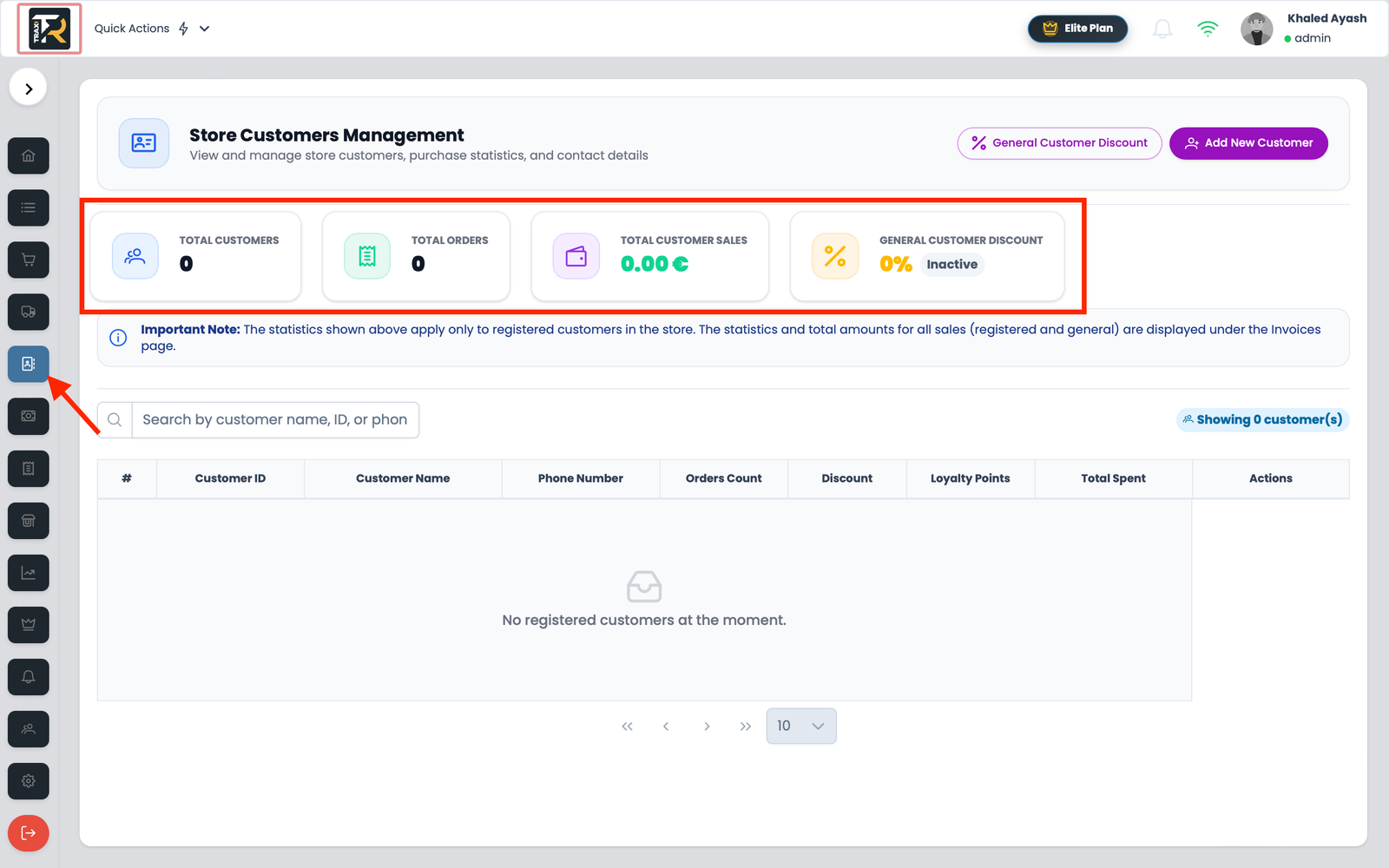
Visual Reference: Customers Management Table & Summary Cards
3. Customers Data Table Breakdown #
The main directory table provides quick insights into customer activity:
| Column Header | Field Details & Behavior |
|---|---|
| # | Row index number. |
| Customer ID | Unique customer identification number with a blue barcode icon (pi pi-barcode). Clicking the ID immediately opens the Customer Details modal. |
| Customer Name | Primary client name (displayed in bold text). |
| Phone | Customer contact number formatted with phone icon (pi pi-phone). Displays “Not specified” if empty. |
| Orders Count | Blue tag badge (p-tag) displaying total historical order count. |
| Total Spent | Total expenditure in Euros formatted to two decimal places (e.g., 18,450.00 €). |
| Discount | |
| Loyalty Points | |
| Actions | Action buttons: View Details (Eye), Edit (Pencil), and Delete (Trash). |

4. Real-Time Search #
- Debounced Search Bar: Type any customer name, phone number, or email into the search box. The list filters dynamically after 600ms without reloading the page.
- Clear Search: Click the (✕) button on the right side of the input to reset search filters instantly.


