Registering customer contact details in TRAX Store Management System enables customized service, accurate invoice referencing, and customer identification during checkout.
1. Step-by-Step: Adding a New Customer #
- Open the Customers screen (
/home/customers). - Click the blue + Add New Customer button (
pi pi-user-plus) in the top banner. - The entry modal displays the following fields:
- Customer Name (*): Mandatory full name (minimum 2 characters required).
- Customer Phone: Mobile or landline contact number.
- Email: Customer email address (automatically validated for correct email formatting).
- Address: Physical location, street name, city, and postal code.
- Notes: Multiline text area for special preferences, delivery instructions, or internal reminders.
- Customer Discount Percentage (%)
- Loyalty Points
- Click the blue Save Customer button.


Visual Reference: Add / Edit Customer Dialog
2. Built-In Duplicate Prevention Engine #
To prevent fragmented records and duplicate profiles, TRAX POS performs an automatic pre-flight check before saving:
- If another customer already exists with the same Name or same Email Address:
- The system halts the registration and displays a warning dialog:
"Customer already registered by Name/Email under ID #XXXXXX". - This protects your customer database integrity and prevents duplicate account creation.
- The system halts the registration and displays a warning dialog:

Visual Reference: Add New same Customer
3. Editing Existing Customer Information #
- Locate the customer row in the table.
- Click the amber Edit (Pencil) icon in the Actions column.
- The dialog opens in edit mode pre-populated with current contact information.
- Update phone, email, address, or notes.
- Click Update Customer. Changes synchronize across the cloud server and local terminals immediately.
4. Deleting a Customer Profile #
- Click the red Delete (Trash) icon in the Actions column.
- A SweetAlert2 confirmation modal prompts: “Are you sure you want to delete customer [Name]?”.
- Click Yes, Delete.
- The customer profile is permanently deleted from the database. Any existing past sales receipts remain safely archived in your financial history with customer references cleared.
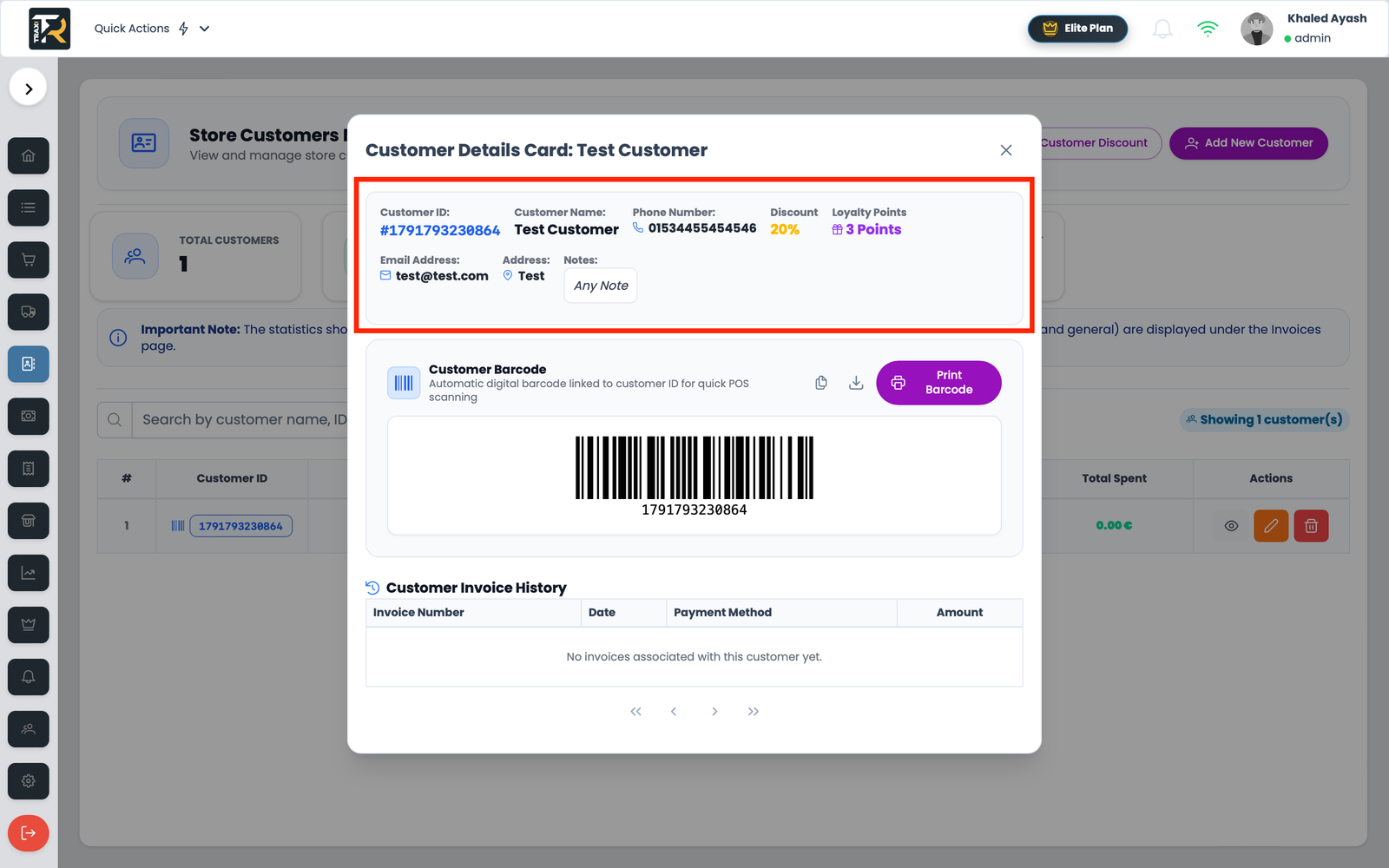
5. View Details a Customer #
- Click the red eyeball icon in the Actions column.
- The dialog open with current information.