Organizing your retail items into structured categories accelerates touch-screen POS operations and enables detailed departmental sales reporting in TRAX Store Management System.
1. Why Categorize Products? #
- High-Speed Touch Checkout: Cashiers can quickly tap category tiles to browse products without manual typing.
- Granular Financial Reporting: Track sales volume, margins, and revenue per category (e.g., Grocery vs. Electronics).
- Inventory Control: Filter stock audits and supplier reorders by specific departments.
2. Creating a New Category #
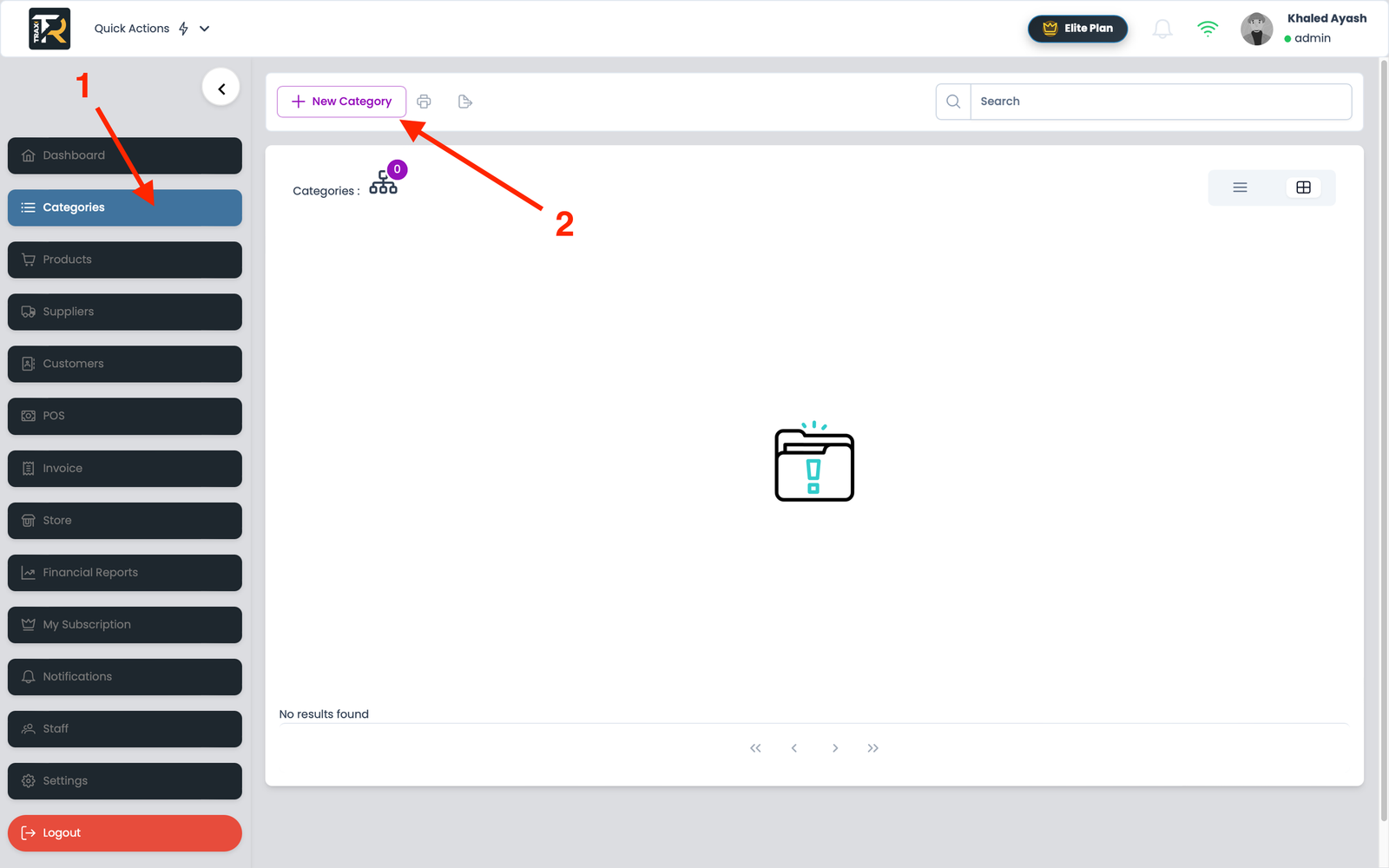
- From the main sidebar menu, select Categories .
- Click the blue + New Category button in the top-right corner.
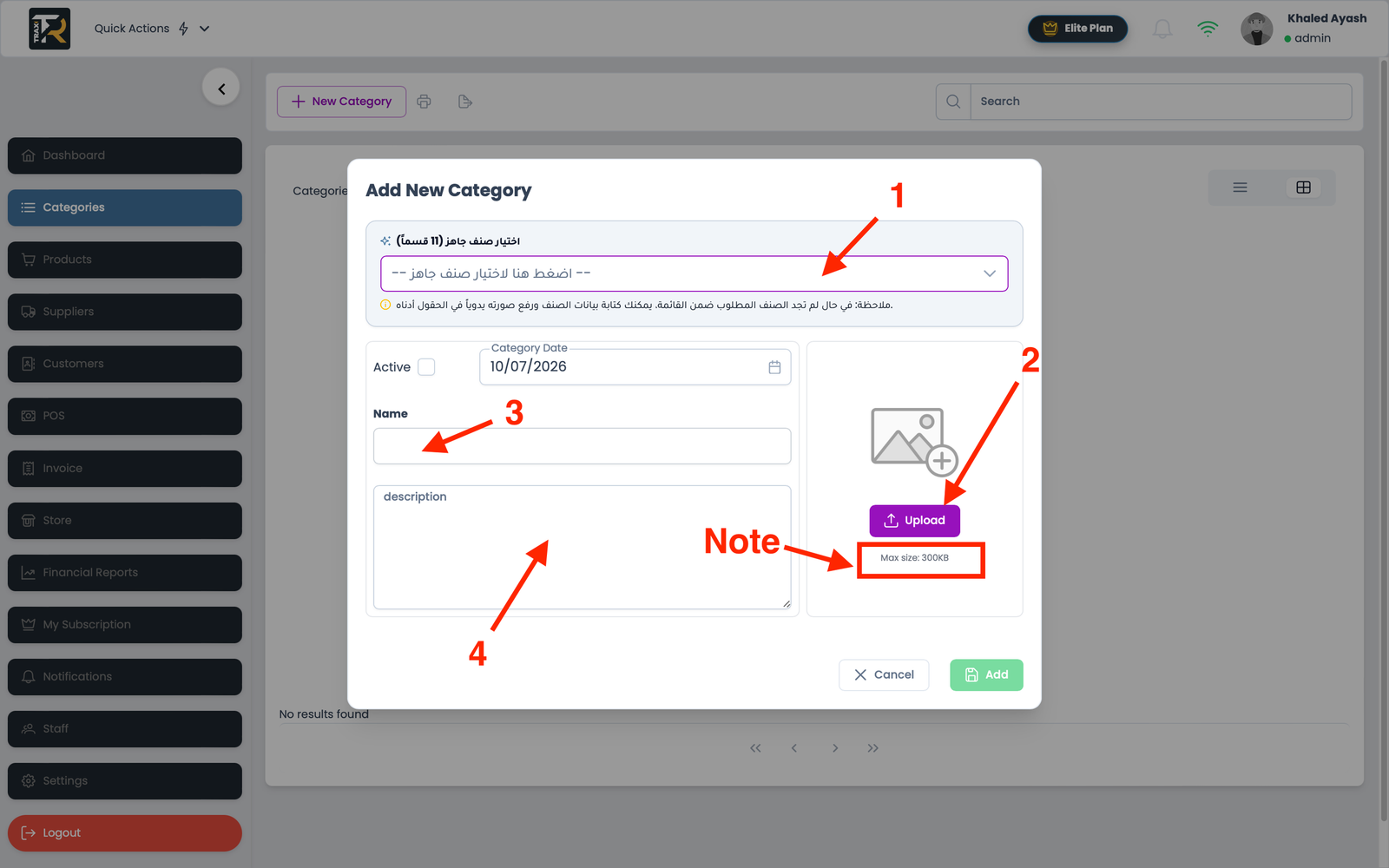
- In the category creation modal, configure the following fields:
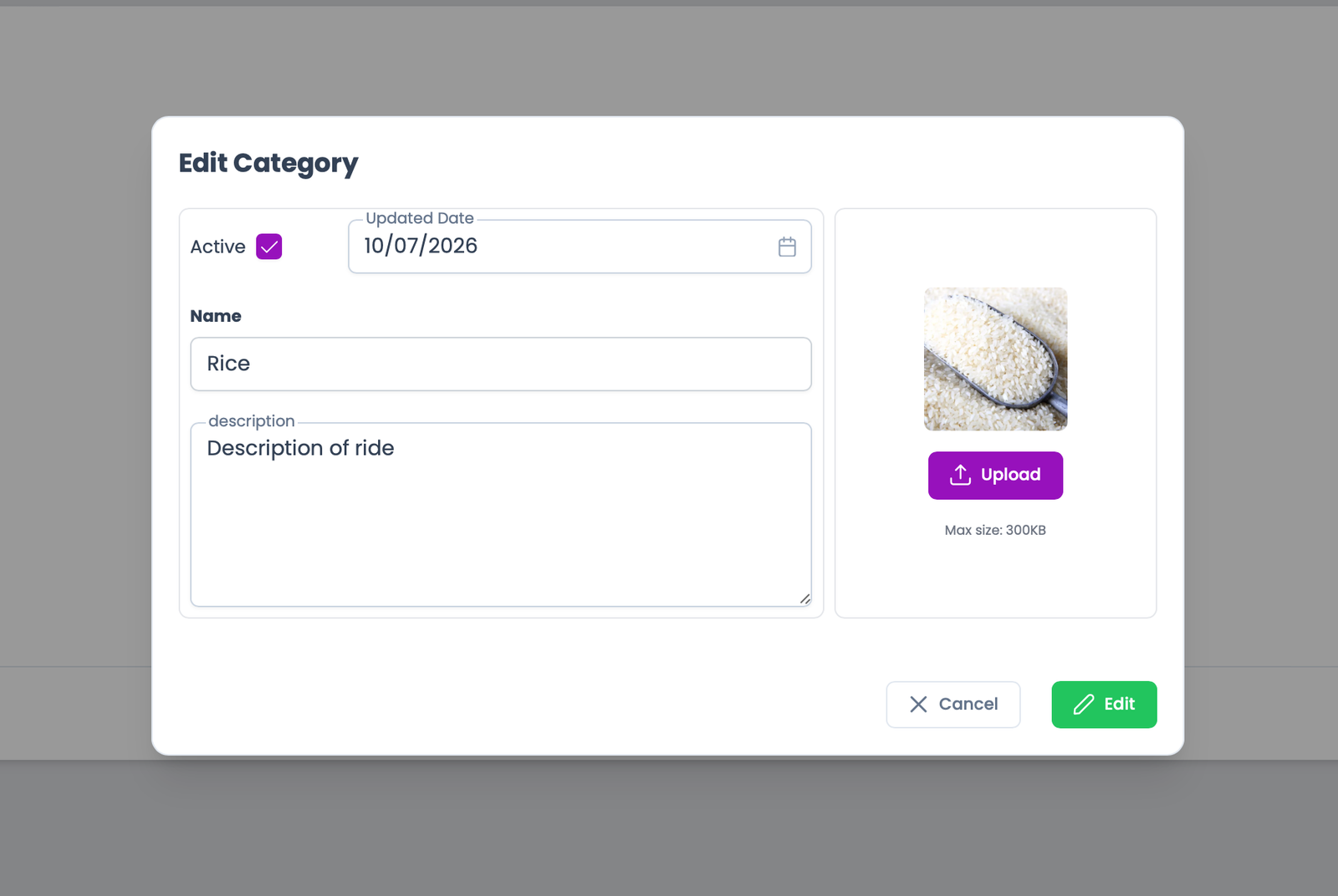
- Category Name: Enter a clear departmental name (e.g., Beverages, Dairy, Bakery).
- Image: Upload category image (maximum size : 300 KB)
- Description: Write a brief description of the category.
- Category Date : It happens automatically , or it can be changed seperately.
- Active : Enable or disable the category.
- Click Add button to save the category.
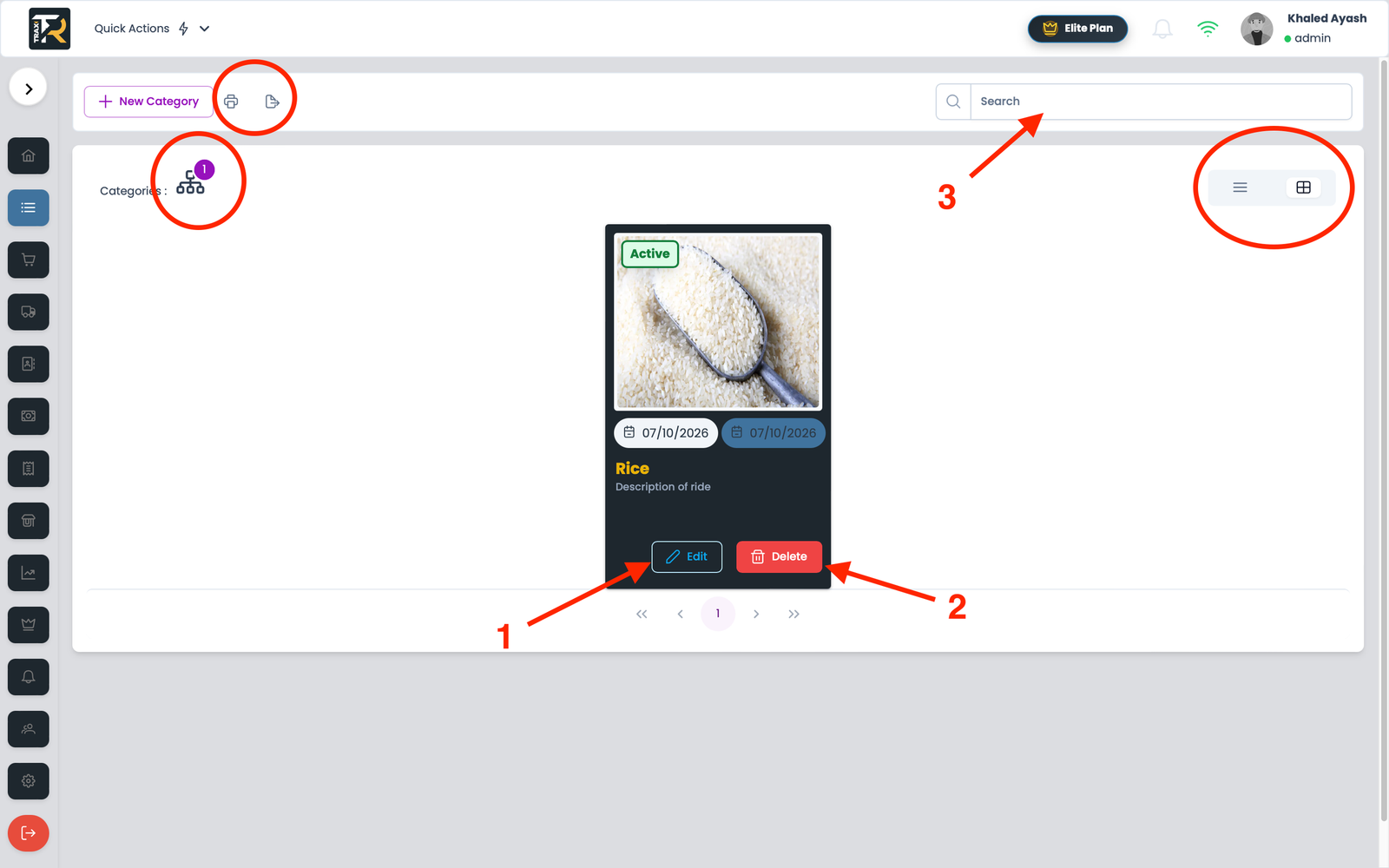
Visual Reference: Category Management Grid
3. Editing & Deleting Categories #
- Editing Details: Click the Edit icon on any category card to update its .
- Deleting Categories: Click the button Delete.
You can export data as Excel files and print them as PDF files.
You can search for a category name using the top menu.
Note: If the Category is deleted, all products belonging to it will also be deleted.