Adding items to your catalog accurately ensures effortless barcode scanning, correct pricing, automated tax collection, and seamless inventory deductions in TRAX Store Management System.
1. Step-by-Step: Adding a New Product #
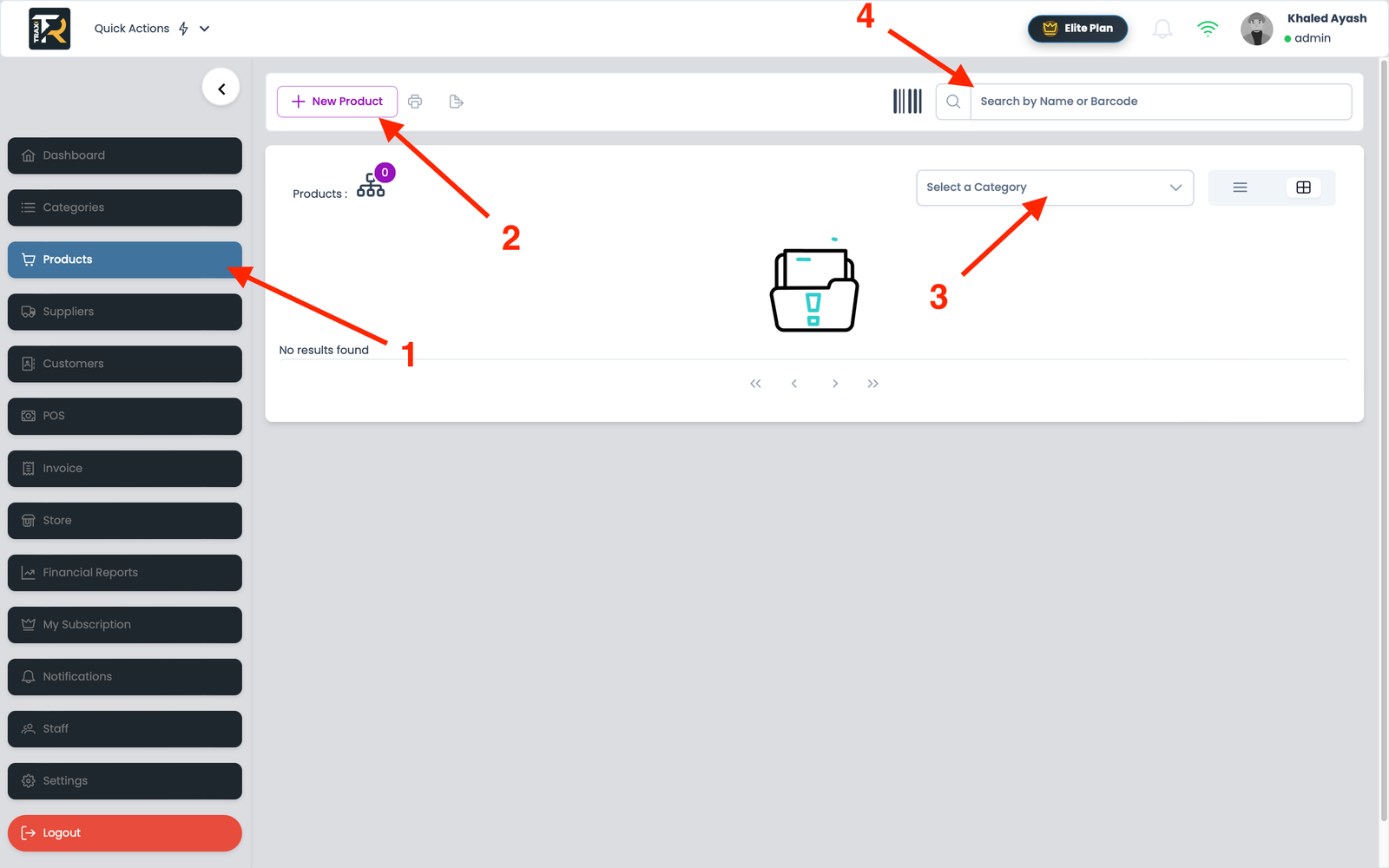
- Navigate to Products from the sidebar and click + New Product (or press
Alt + 3). - Fill in the primary product information:
- Product Name: The descriptive customer-facing title (e.g., Organic Green Tea 250g).
- Barcode (EAN-13 / UPC / SKU): Scan the physical product barcode with your handheld scanner, or click arrow button to create a unique internal code.
- Category: Assign the product to its relevant departmental category from the dropdown.
- Store Information : We determine the quantity of the product in stock to automatically calculate the quantities sold and remaining.
- Loyalty & Reward Points (Optional) : Optionally reward customers with points when purchasing this product, redeemable for discounts on future invoices.
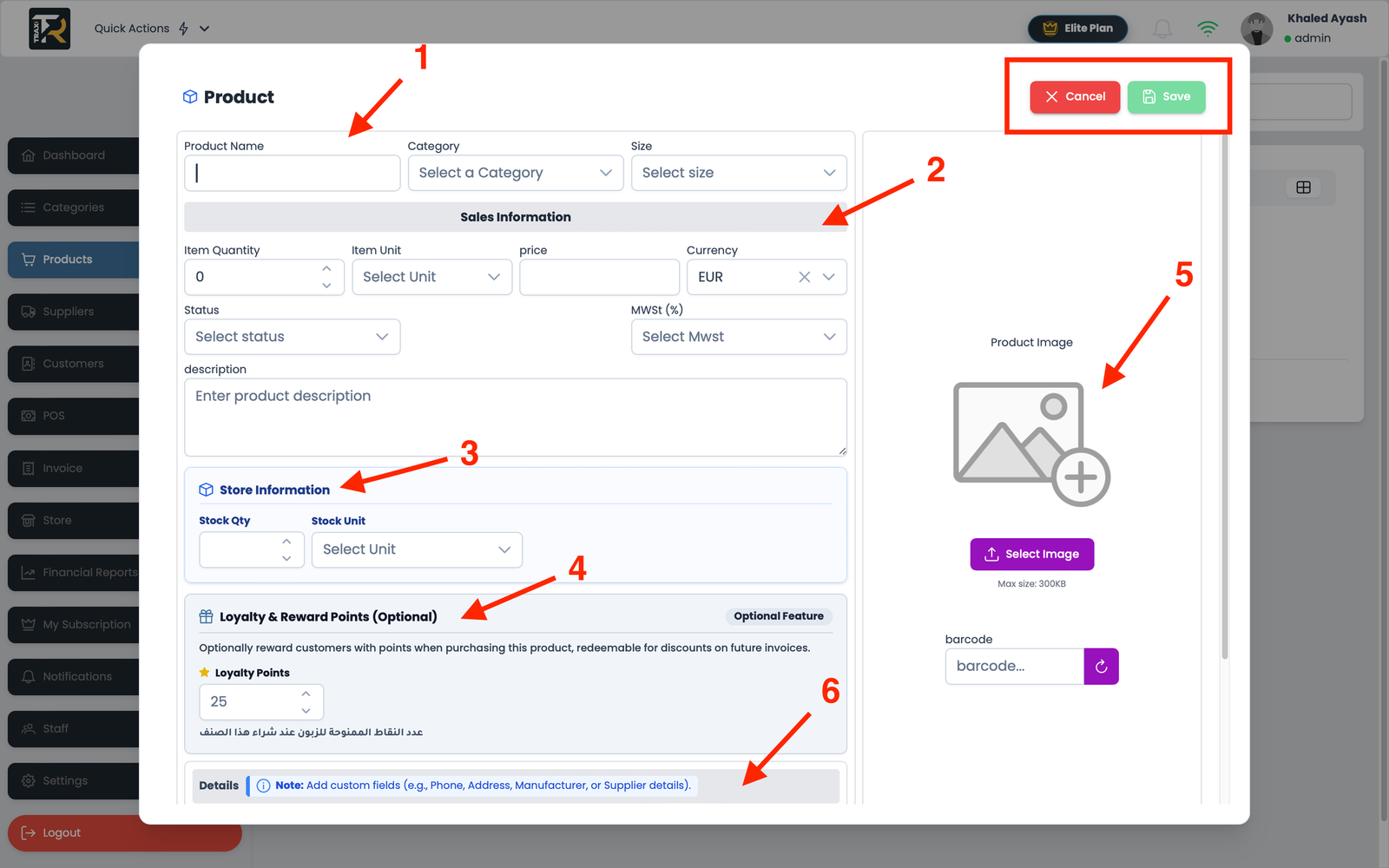
Visual Reference: Add Product Form Modal
2. Pricing & Profit Margin Calculation #
TRAX System features an automatic real-time profit margin calculator:
- Cost Price (Purchase Price): Enter your wholesale acquisition cost (e.g.,
$2.20). - Value-Added Tax(VAT) (or MWSt %): The value-added tax (VAT) amount is entered for the item based on its type and the applicable tax tariff within the country.
3. Inventory & Media Settings #
- Initial Stock Quantity: Enter the starting physical count on hand (e.g.,
50 units). - Product Image Upload: Drag and drop a product photo (Max size: 300KB)
- Active Status: Select the product status from the drop-down menu
4.Saving the Product #
To save the product, click the Save button in the top corner, to cancel , click the Cancel button.
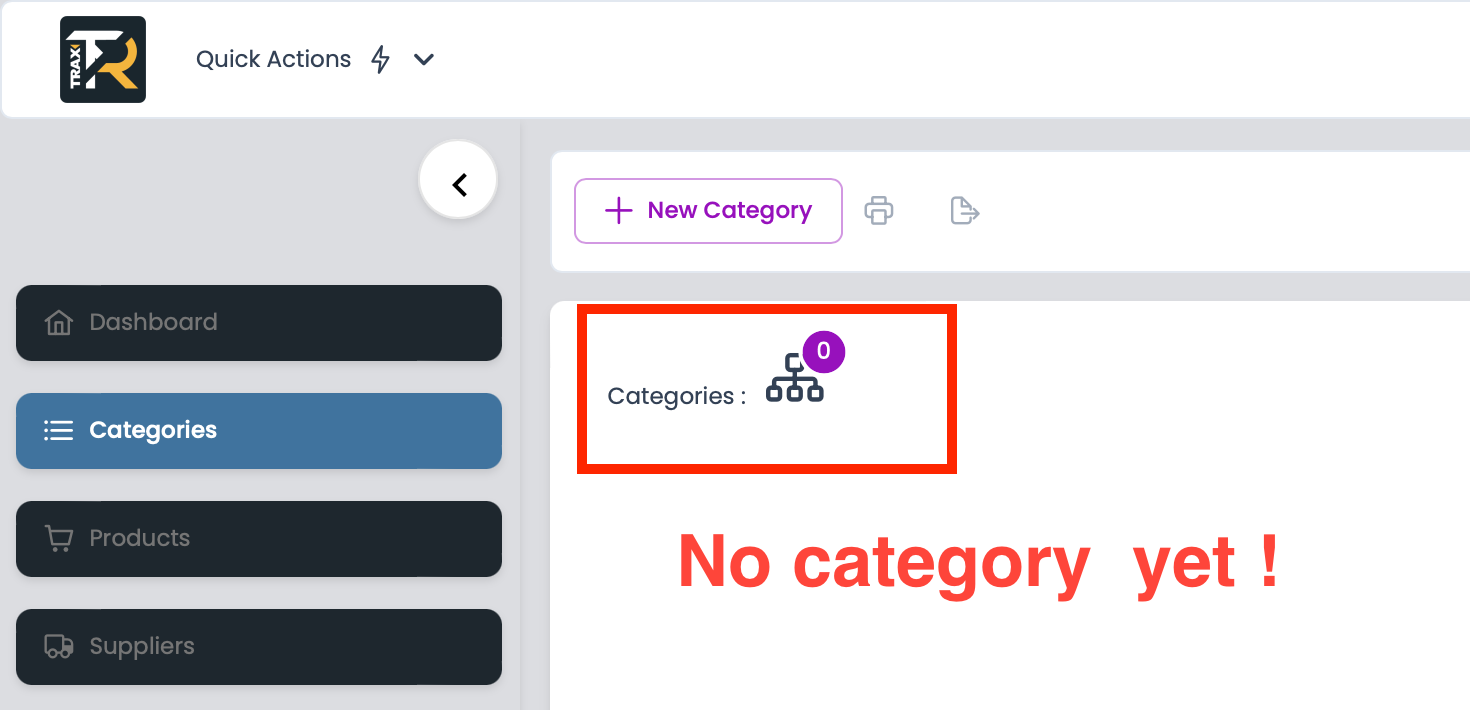
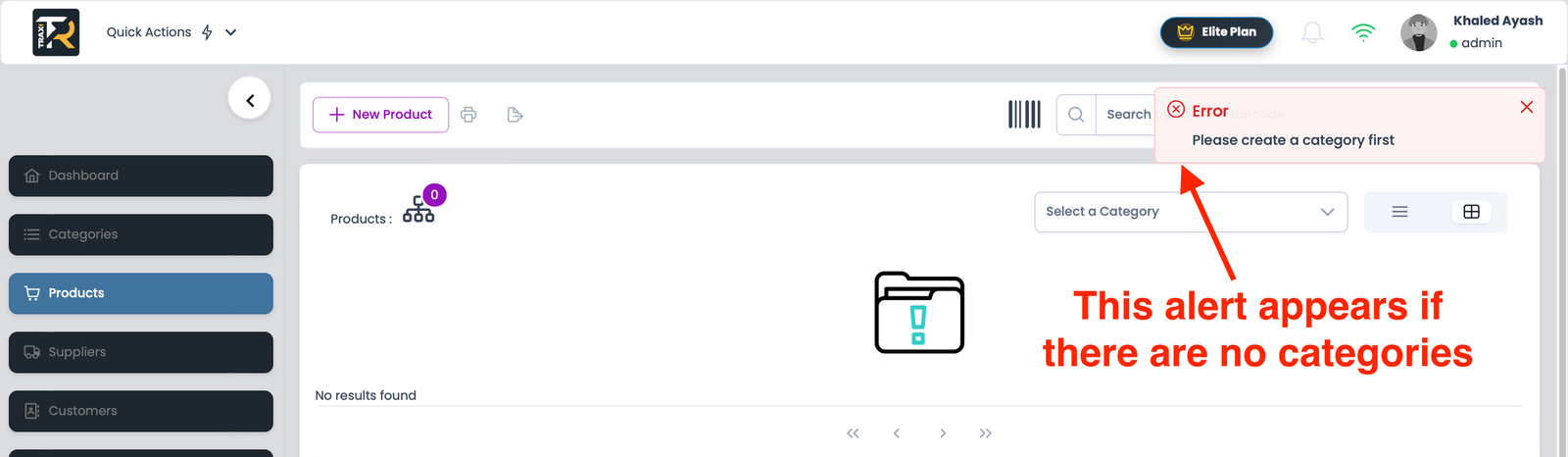
Note : If no category exists, the product addition process fails.