
Skip to content
Skip to content
No results
  • Home
  • Service
  • Price
  • Knowledge
    • Knowledge Base
    • Training videos
  • Contact as
Application Trial14 Days testing
group-trax.com
  • Home
  • Service
  • Price
  • Knowledge
    • Knowledge Base
    • Training videos
  • Contact as
group-trax.com

01-Getting Started & Setup

3
  • 01.1-Login & Security
    • How to Secure Your First-Time Login Easily
  • 01.2-Store Profile Setup
    • Master Store Profile, Tax Setup, and Receipt Customization
  • 01.3-UI Navigation Tour
    • Ultimate Guide to UI Navigation, Status Indicators, and Menus

02-Hardware & Devices

4
  • 02.1-Receipt Printers Setup
    • 02.1- Receipt Printers Setup (Thermal 80mm & 58mm)
  • 02.2-PrintAgent Desktop App
    • 02.2- PrintAgent Desktop Application & Background Service
  • 02.3-Scanner & Cash Drawer
    • 02.3- Barcode Scanner & Electronic Cash Drawer Integration
  • 02.4-Customer Display Setup
    • 02.4- Dual-Screen Customer Facing Display Setup

03-Products & Inventory

3
  • 03.1-Categories Management
    • 03.1- Product Categories Management
  • 03.2-Add & Manage Products
    • 03.2- Adding & Managing Products (Catalog Setup)
  • 03.3-VAT & Tax Rates Setup
    • 03.3- VAT & Tax Rates Configuration
View Categories
  • Home
  • Knowledge Base v1
  • 01-Getting Started & Setup
  • 01.3-UI Navigation Tour
  • Ultimate Guide to UI Navigation, Status Indicators, and Menus

Ultimate Guide to UI Navigation, Status Indicators, and Menus

2 min read

01.3- User Interface Navigation, Status Indicators & Menus

The TRAX POS interface is engineered for touchscreens, standard desktop monitors, and barcode scanner setups. It combines fast user interface navigation with real-time operational status indicators.


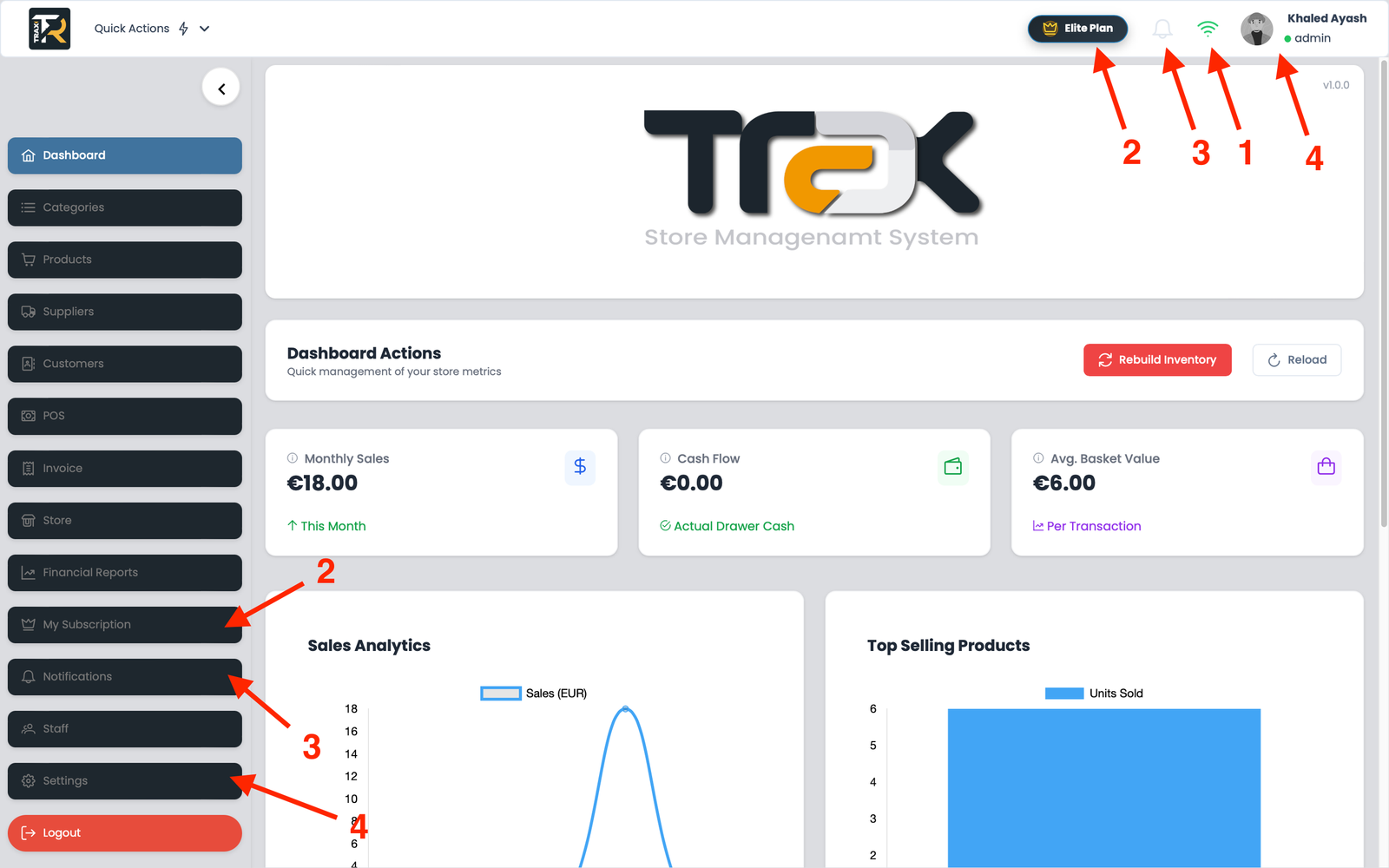
1. Top Header Toolbar & Live Indicators #

The persistent top header bar provides instant feedback across all screens:

  1. Network Connectivity Indicator (Online / Offline):
    • 🟢 Green WiFi (Online): Connected to cloud servers; all sales, products, and shifts sync instantly.
    • 🔴 Red WiFi (Offline Mode): Network connection is lost. The application automatically switches to local IndexedDB storage, allowing checkout, printing, and drawer operations to continue without interruption.
  2. Trial & Subscription Countdown Badge:
    • A golden widget showing remaining days and hours on your current store license. Clicking the badge opens the renewal dashboard.
  3. Real-Time Notification Bell:
    • Displays red notification badges for inventory restock alerts, daily shift closing notices, and management updates.
  4. User Profile & Shift Badge:
    • Displays the active user avatar, name, and operational status dot:
      • 🟢 Active: Clocked in and ready.
      • 🟡 Out of Work: Shift completed / clocked out.
      • 🔵 Holiday: Scheduled time-off.

Visual Reference: Dashboard & Navigation Tour #

(Upload and insert the generated pos_ui_tour image here)


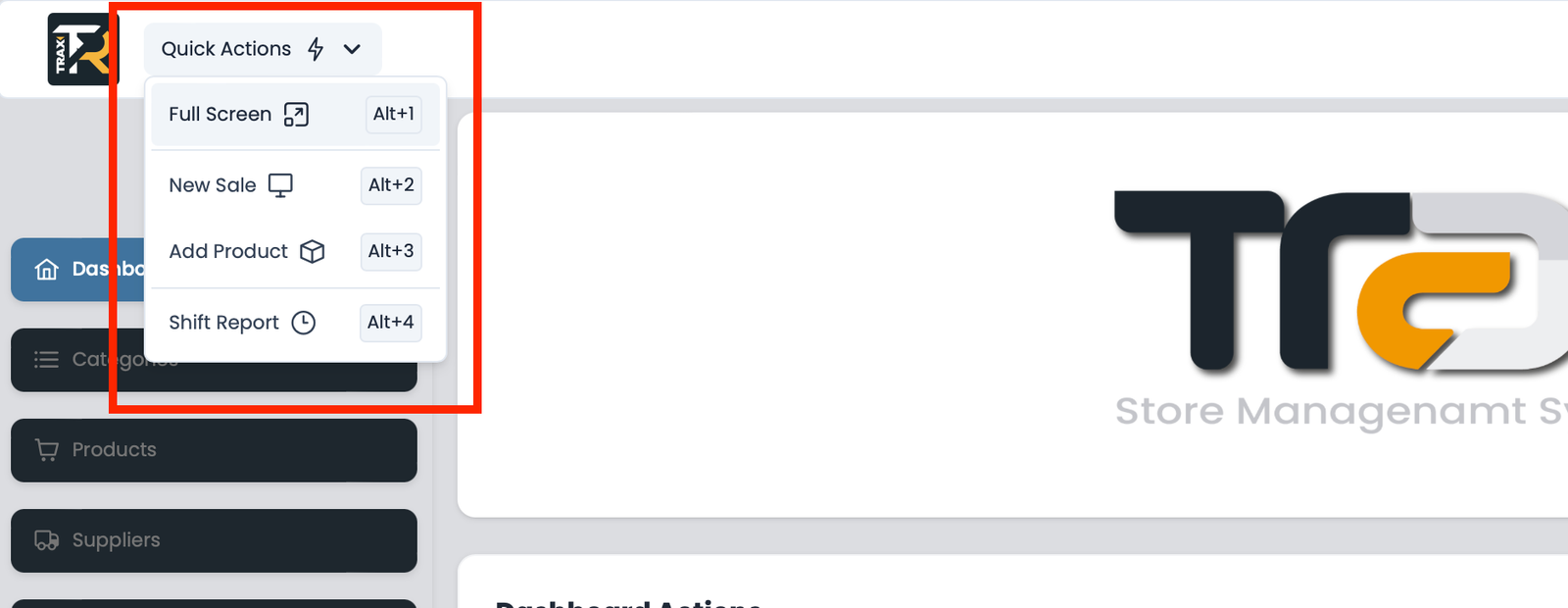
2. High-Speed Keyboard Shortcuts (Quick Actions) #

For maximum cashier speed without touching the mouse:

  • Alt + 1: Toggle Fullscreen Mode (ideal for dedicated POS terminals).
  • Alt + 2: Open a New Sale / Instant POS screen.
  • Alt + 3: Quick Add New Product (Admin only).
  • Alt + 4: Quick Shift Summary Report & Cash Drawer audit.
3. Collapsible Sidebar Navigation #

Click the arrow toggle () at the sidebar bottom to collapse the menu into an icon-only strip.

Moreover, this action maximizes screen real estate for retail operations.

  • 📊 Dashboard: High-level metrics, daily turnover charts, and net profits.
  • 📂 Categories & Products: Catalog setup, barcode generation, and stock management.
  • 🚚 Suppliers: Supplier database, purchase orders, and goods receiving.
  • 👥 Customers (CRM): Customer directory, credit limits, and loyalty balances.
  • 🖥️ POS: Real-time touch-enabled cash register interface.
  • 🧾 Invoices: Searchable transaction history, reprints, and customer returns.
  • 📈 Financial Reports: Z-Reports, VAT tax breakdowns, and cashier KPI metrics.
  • 👑 My Subscription: Plan tier details and upgrade workflows.
  • 👥 Staff: Cashier accounts, permissions matrix, and shift time tracking.
  • ⚙️ Settings: Thermal printers, barcode scanners, and fiscal compliance setup.

4. Tablet & Touchscreen Responsive Layout #

On smaller displays or POS tablets, the sidebar collapses into an intuitive Hamburger Menu (☰) to support user interface navigation. This preserves full-width grid layouts for product tiles and enables quick touch checkout.

Updated on September 9, 2026
1-Getting Started & Setup

What are your Feelings

  • Happy
  • Normal
  • Sad

Share This Article :

  • Facebook
  • X
  • LinkedIn
  • Pinterest
Ultimate Guide to UI Navigation, Status Indicators, and MenusUltimate Guide to UI Navigation, Status Indicators, and Menus

Leave a ReplyCancel Reply

Your email address will not be published. Required fields are marked *

Table of Contents
  • 1. Top Header Toolbar & Live Indicators
  • Visual Reference: Dashboard & Navigation Tour
  • 2. High-Speed Keyboard Shortcuts (Quick Actions)
  • 3. Collapsible Sidebar Navigation
  • 4. Tablet & Touchscreen Responsive Layout
  • Home
  • Service
  • Price
  • Knowledge
  • Contact as
Application Trax

Trax Store Management System.
All rights reserved.

Trax Store Management Systeme
