

Configuring your store profile and fiscal parameters is the foundation of your retail system. The information entered here is printed directly on one thermal customer receipts, invoice PDFs, and official financial reports.
1. Required Permissions #
- Role: Store Administrator (Admin) only.
2. Accessing Store Settings #
- From the main sidebar menu, select Settings.
- Click on the General Info / Store Settings tab.
3. Mandatory Business Details #
| Field Name | Purpose & Business Significance | Example |
|---|---|---|
| Store Name | Official trade name printed on the receipt header and customer display. | Trax Retail Store |
| Tax Identification (TIN / Steuernummer) | Mandatory tax registration number for legal and fiscal compliance. | DE 123456789 |
| Phone & Email | Customer support contacts printed on receipts for inquiries. | +49 170 1234567 |
| Store Address | Branch physical location (Street, City, Postal Code). | Alexanderplatz 5, Berlin |
| Default Currency | Primary currency used across all transactions and drawer summaries. | EUR (€) / USD ($) |
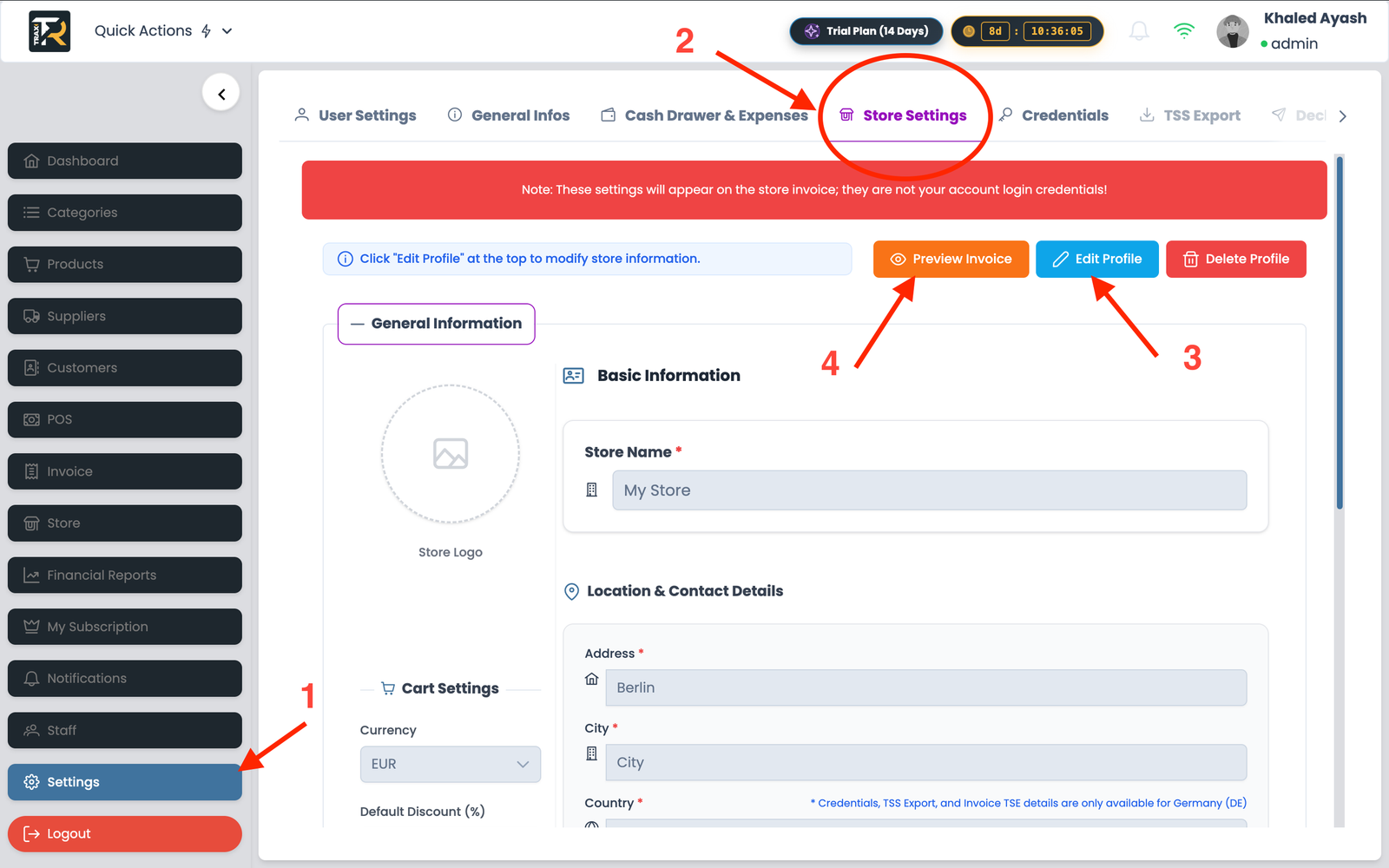
Visual Reference: Store Profile & Receipt Setup
4. Uploading Your Store Logo #
- In the Logo Section, click the Upload Logo button.
- Select your logo file (recommended: PNG or JPG with a transparent or white background, minimum width of 400px).
- The uploaded logo will immediately preview on the sample thermal receipt.
5. Customizing Receipt Headers & Footer Notes #
You can add one custom message to enhance brand credibility and communicate policy rules.
- Header Welcome Message: e.g., “Welcome to Trax – Quality & Value Every Day!”
- Footer Policy Note: e.g., “Items can be exchanged within 14 days with this original receipt. Thank you for your visit!”
- Social Media / QR Code: Links to your online shop, feedback survey, or social channels.
6. Saving & Printing a Test Receipt #
- Click the Save Settings button at the bottom of the page.
- A green notification banner confirms that settings have synchronized with the server and local database.
- Verification: Navigate to the Invoices page, open any completed transaction, and click Print Receipt to ensure your logo, tax number, and footer notes render accurately on thermal paper.


