Skip to content
Skip to content
No results
  • Home
  • Service
  • Price
  • Knowledge
    • Knowledge Base
    • Training videos
  • Contact as
Application Trial14 Days testing
group-trax.com
  • Home
  • Service
  • Price
  • Knowledge
    • Knowledge Base
    • Training videos
  • Contact as
group-trax.com

01-Getting Started & Setup

3
  • 01.1-Login & Security
    • How to Secure Your First-Time Login Easily
  • 01.2-Store Profile Setup
    • Master Store Profile, Tax Setup, and Receipt Customization
  • 01.3-UI Navigation Tour
    • Ultimate Guide to UI Navigation, Status Indicators, and Menus

02-Hardware & Devices

4
  • 02.1-Receipt Printers Setup
    • 02.1- Receipt Printers Setup (Thermal 80mm & 58mm)
  • 02.2-PrintAgent Desktop App
    • 02.2- PrintAgent Desktop Application & Background Service
  • 02.3-Scanner & Cash Drawer
    • 02.3- Barcode Scanner & Electronic Cash Drawer Integration
  • 02.4-Customer Display Setup
    • 02.4- Dual-Screen Customer Facing Display Setup

03-Products & Inventory

3
  • 03.1-Categories Management
    • 03.1- Product Categories Management
  • 03.2-Add & Manage Products
    • 03.2- Adding & Managing Products (Catalog Setup)
  • 03.3-VAT & Tax Rates Setup
    • 03.3- VAT & Tax Rates Configuration
View Categories
  • Home
  • Knowledge Base v1
  • 01-Getting Started & Setup
  • 01.1-Login & Security
  • How to Secure Your First-Time Login Easily

How to Secure Your First-Time Login Easily

1 min read

# 01.1- First-Time Login & Account Security Guide

Welcome to TRAX Store Management System & POS. This guide walks you through logging in for the first time. It also covers securing your credentials and using the quick PIN lock overlay during cashier operations. It also covers training tips and best practices.

There are two main actions you will perform on login and during operations. Additionally, the guide explains securing credentials and using the quick PIN lock overlay. During setup, follow the on-screen prompts to complete your profile. Then review security settings and prepare for cashier tasks.


1. Prerequisites #

Before logging in, make sure you have received your access credentials from your store administrator or welcome email:

  • System URL: The cloud web address (e.g., app.traxpos.com) or local IP address for On-Premises terminals.
  • Registered Email: Your assigned user email.
  • Temporary Password: The initial password generated for your account.

2. Step-by-Step Login Instructions #

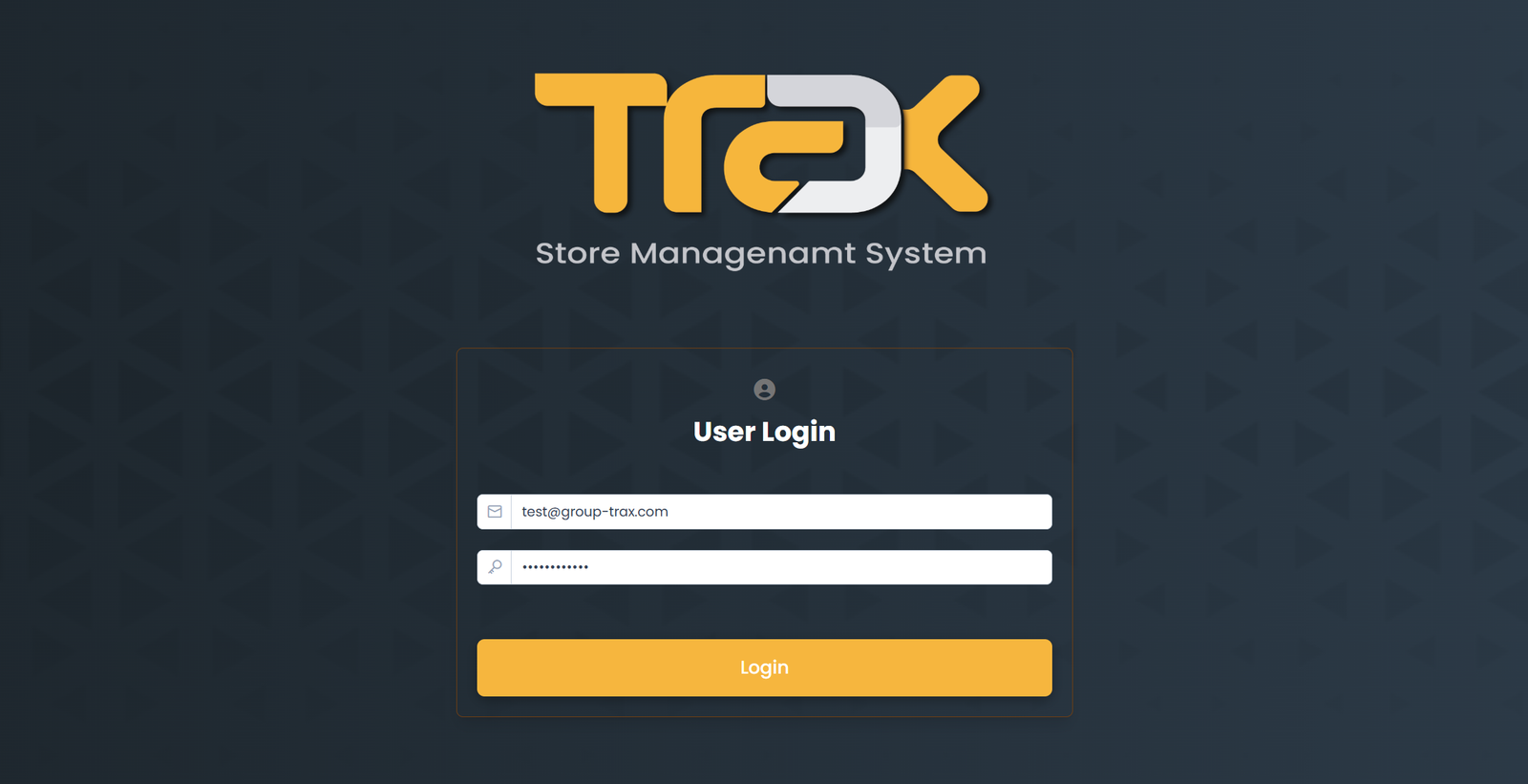
  1. Open your web browser (Google Chrome, Edge, or Safari recommended) and navigate to /login.
  2. Enter your Email Address in the designated field.
  3. Enter your Password (ensure your Caps Lock key is off).
  4. Click the Sign In button.

Role-Based Redirection: Upon successful authentication, the system automatically redirects you according to your role:

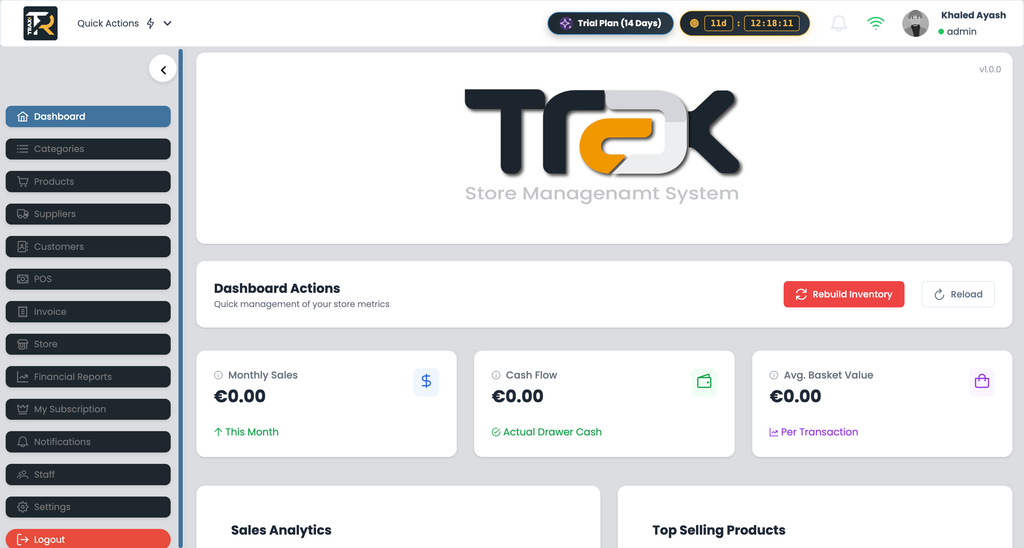
  • Administrators & Managers: Redirected to the Analytics & Metrics Dashboard (/home/dashboard).
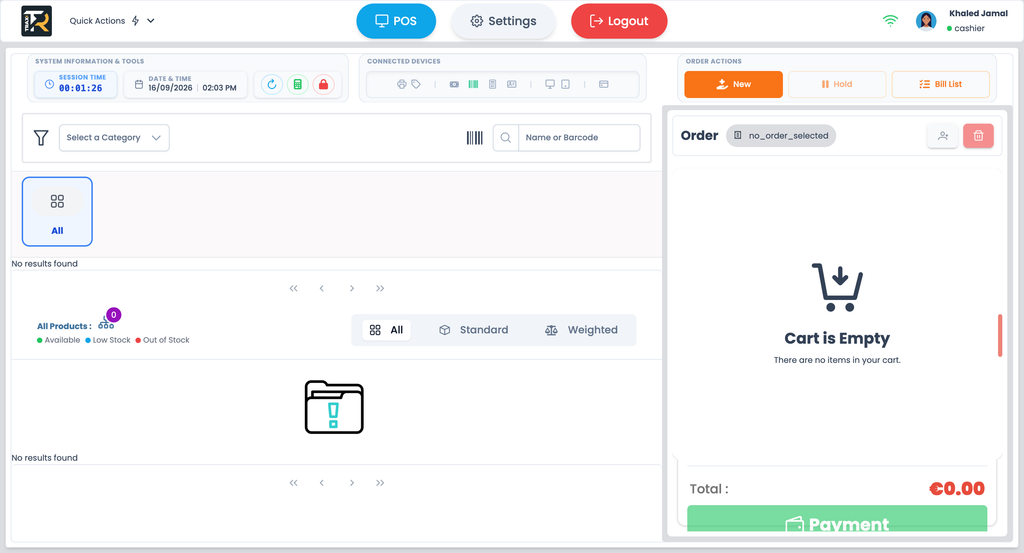
  • Cashiers: Redirected directly to the high-speed POS Terminal workspace (/home/pos).

Visual Reference: Login & Security Interface #
(Upload and insert the generated login_pin_screen image here)


3. Temporary PIN Screen Lock (Cashier Fast-Lock) #

To protect cash registers and financial data when you step away from the terminal, enable two-factor authentication.

  1. Click the Lock Screen button located on the top navigation bar or cash register panel.
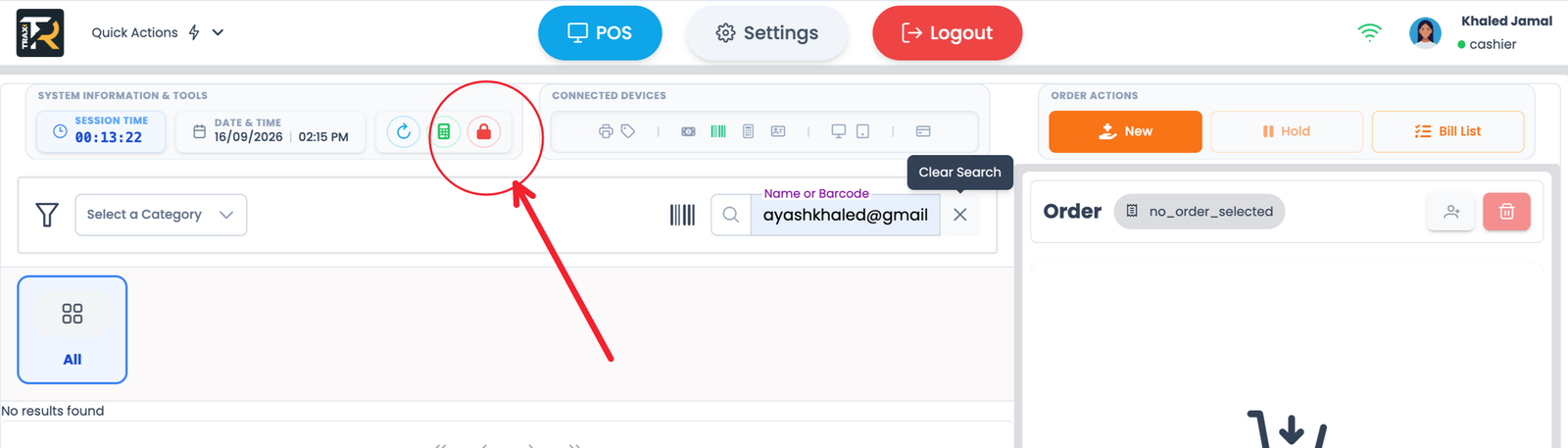
  2. An overlay screen will lock the entire application interface, preventing unauthorized actions.
  3. To unlock, enter your assigned 4-to-6-digit PIN code on the on-screen keypad and click Unlock (or hit Enter on your keyboard).

4. Updating Password & Customizing Your Cashier PIN #

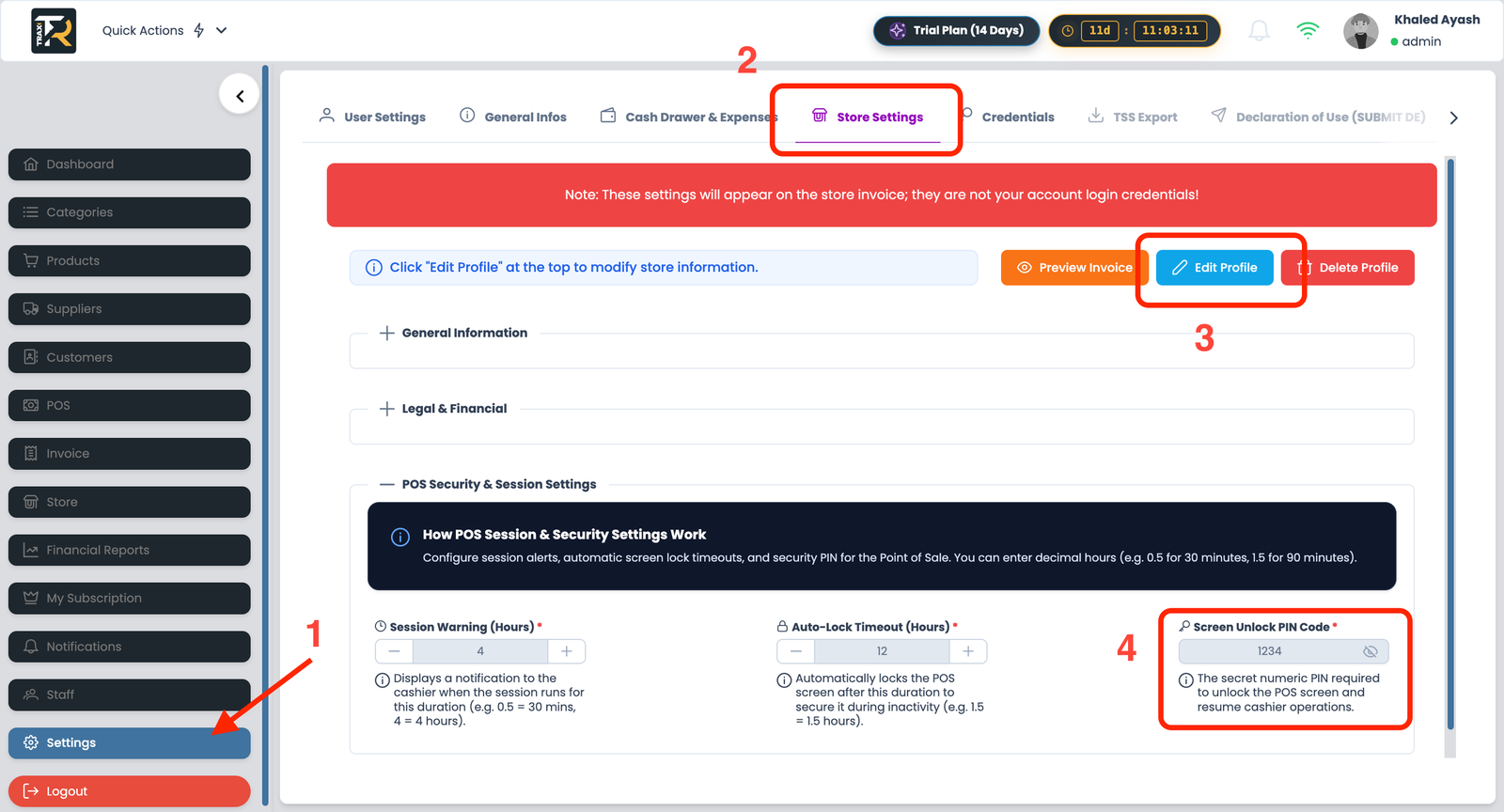
  1. Click your Profile Avatar in the top-right corner, then select Settings.
  2. Navigate to the User Settings tab.
  3. Under the Security Credentials section:
    • Enter your Current Password.
    • Type and confirm your New Secure Password.
    • Set your personal Security PIN Code (used for rapid terminal unlock and approval overrides).
  4. Click Save Changes.

5. Troubleshooting & FAQs #

  • Invalid Credentials Error: Check for trailing spaces when copying and pasting your email address.
  • Forgot PIN while screen is locked: Contact a Store Manager or Administrator. They can unlock your session or update your PIN code under the Staff Management module.
  • Subscription Expired Notice: If an administrative prompt appears asking for subscription renewal, contact your system administrator or proceed to the My Subscription page to renew your store license.
Updated on September 9, 2026
1-Getting Started & Setup

What are your Feelings

  • Happy
  • Normal
  • Sad

Share This Article :

  • Facebook
  • X
  • LinkedIn
  • Pinterest
How to Secure Your First-Time Login EasilyHow to Secure Your First-Time Login Easily

Leave a ReplyCancel Reply

Your email address will not be published. Required fields are marked *

Table of Contents
  • 1. Prerequisites
  • 2. Step-by-Step Login Instructions
  • Visual Reference: Login & Security Interface
  • 3. Temporary PIN Screen Lock (Cashier Fast-Lock)
  • 4. Updating Password & Customizing Your Cashier PIN
  • 5. Troubleshooting & FAQs
  • Home
  • Service
  • Price
  • Knowledge
  • Contact as
Application Trax

Trax Store Management System.
All rights reserved.

Trax Store Management Systeme